

Quickstart
A guide to quickly spinning up a Harbor
Polytomic MCP serverThe below instructions can also be executed in natural language by your agents using Polytomic's MCP server. Ask your agent to install it or follow the instructions here.
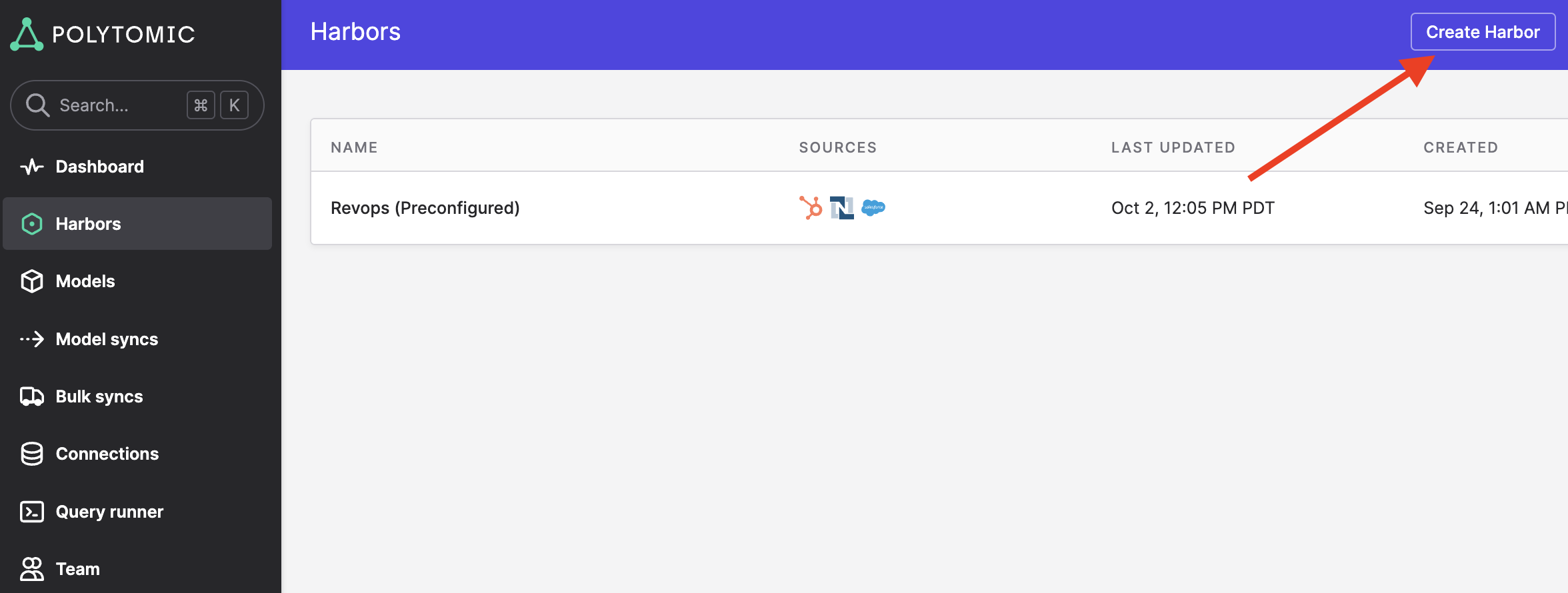
- Navigate to https://app.polytomic.com/harbors and click on Create Harbor:
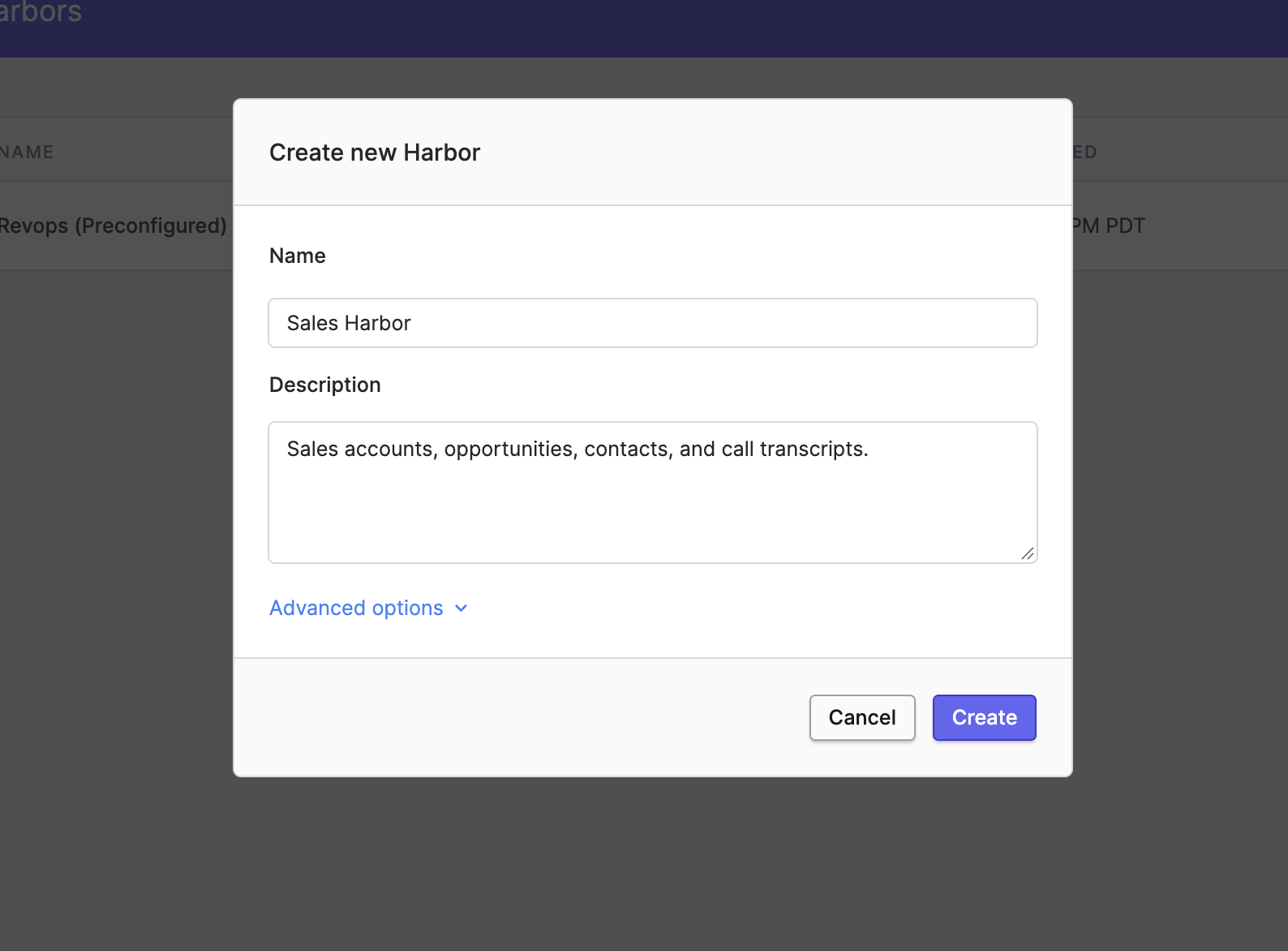
- Give your Harbor a name and short description of the data it will contain. Then click Create:
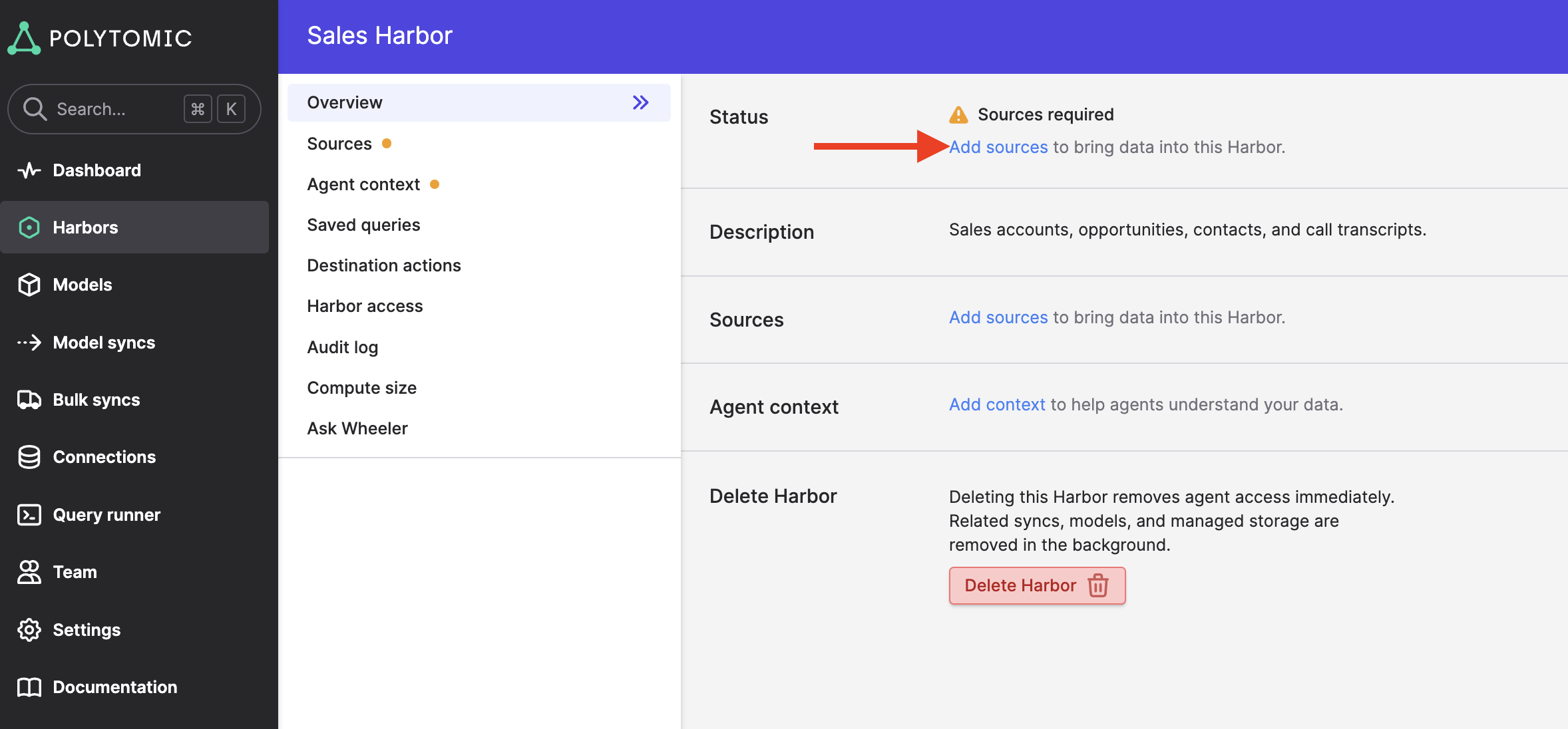
- Your Harbor will take about five seconds to provision. Once ready, add source data from other systems to sync to the Harbor:
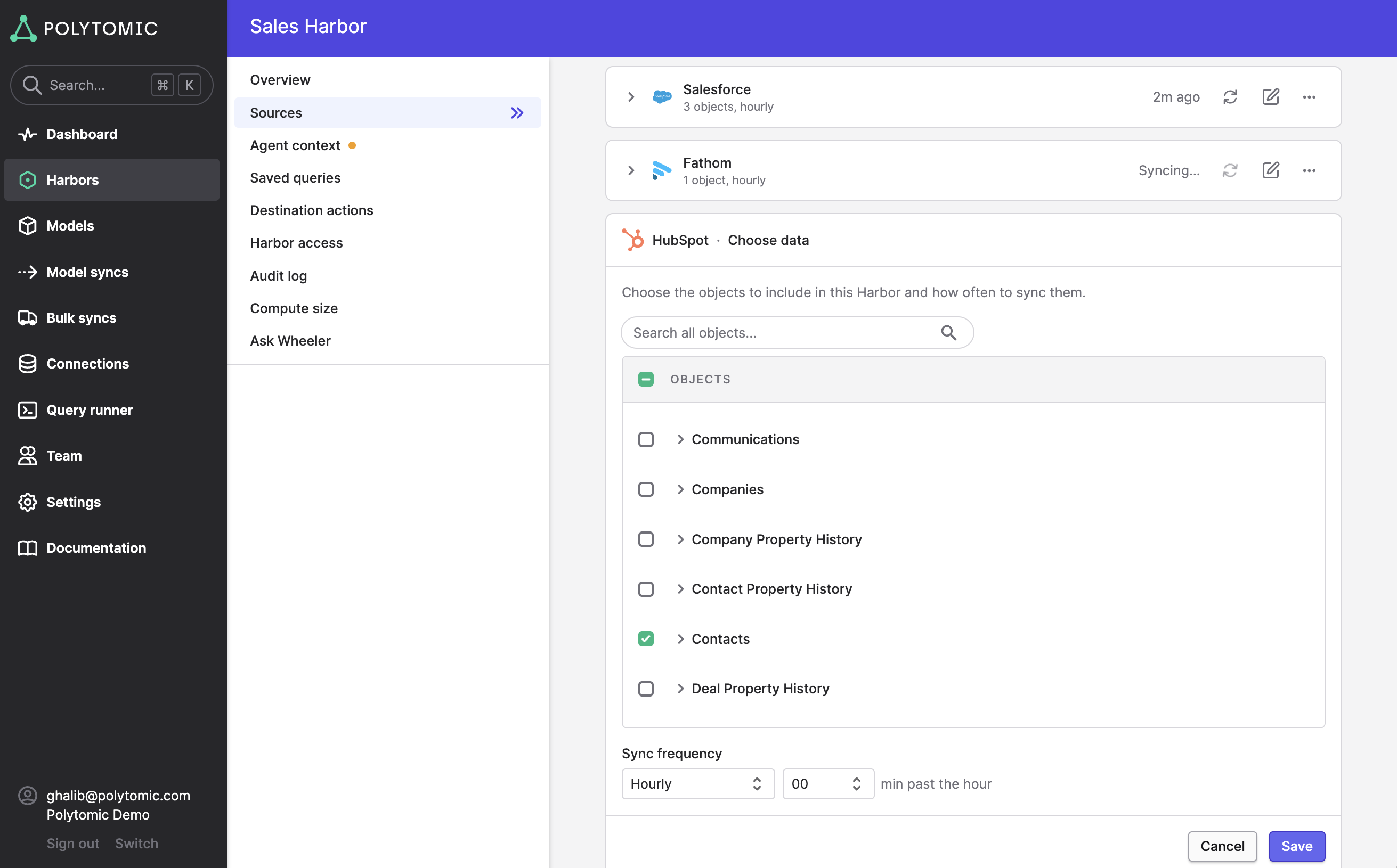
- You can select specific tables, collections, and fields from each source (all Polytomic integrations are supported sources). You can also specify the sync schedule for how often you want the Harbor's data refreshed from each source. You can sync multiple sources into each Harbor:
- Once you've selected the data to sync into your Harbor, the next step is to populate context:
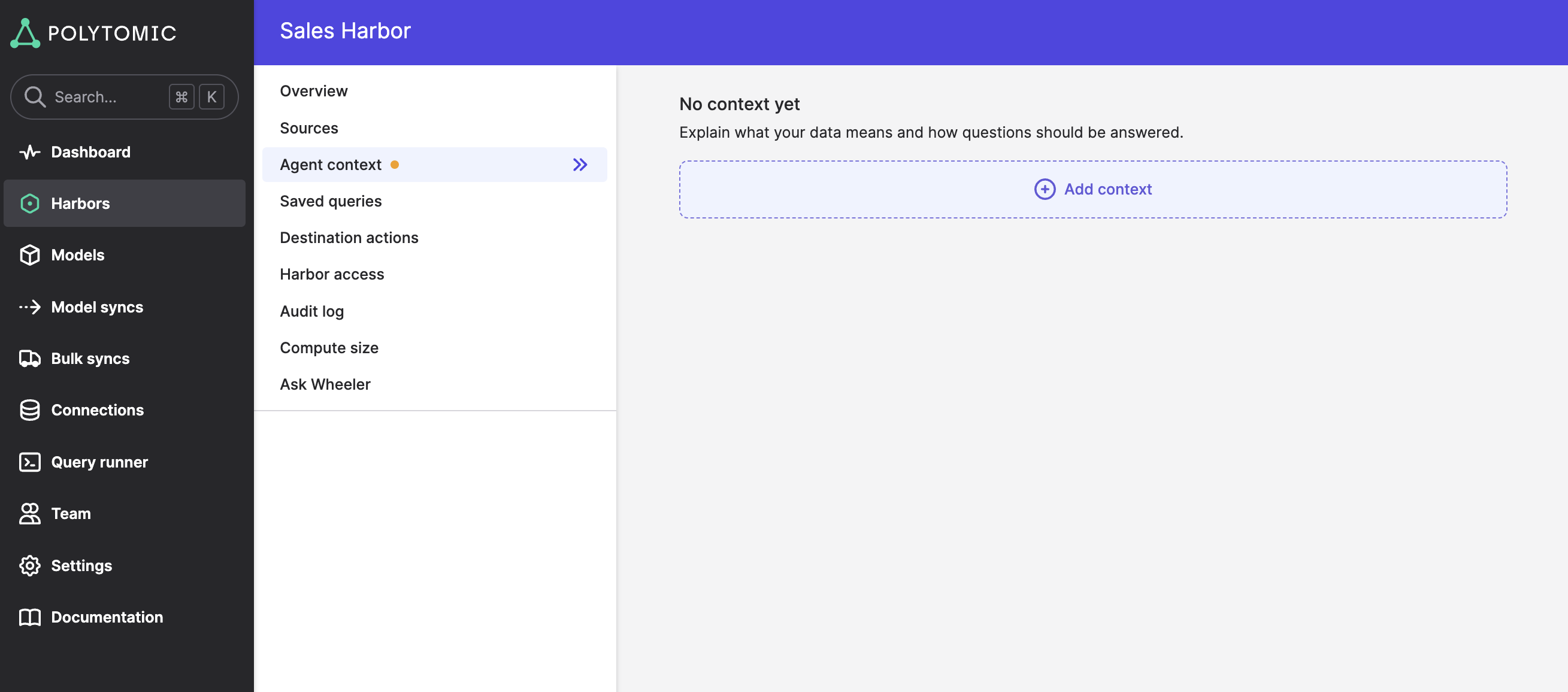
Note that context-addition is optional. Rather than documenting everything, you should instead focus only on documenting exceptions. The only context you should add is that which is specific to your business and processes that you want connecting agents to know about. For example:
- Particular field definitions, including guidance on using certain fields only for certain user questions.
- A certain tone with which connecting agents should reply to their users.
- Notes about your business that connecting agents can bear in mind when responding.
Once you click Add context in the screenshot above, Polytomic will present you with context template documents for you to pick from:
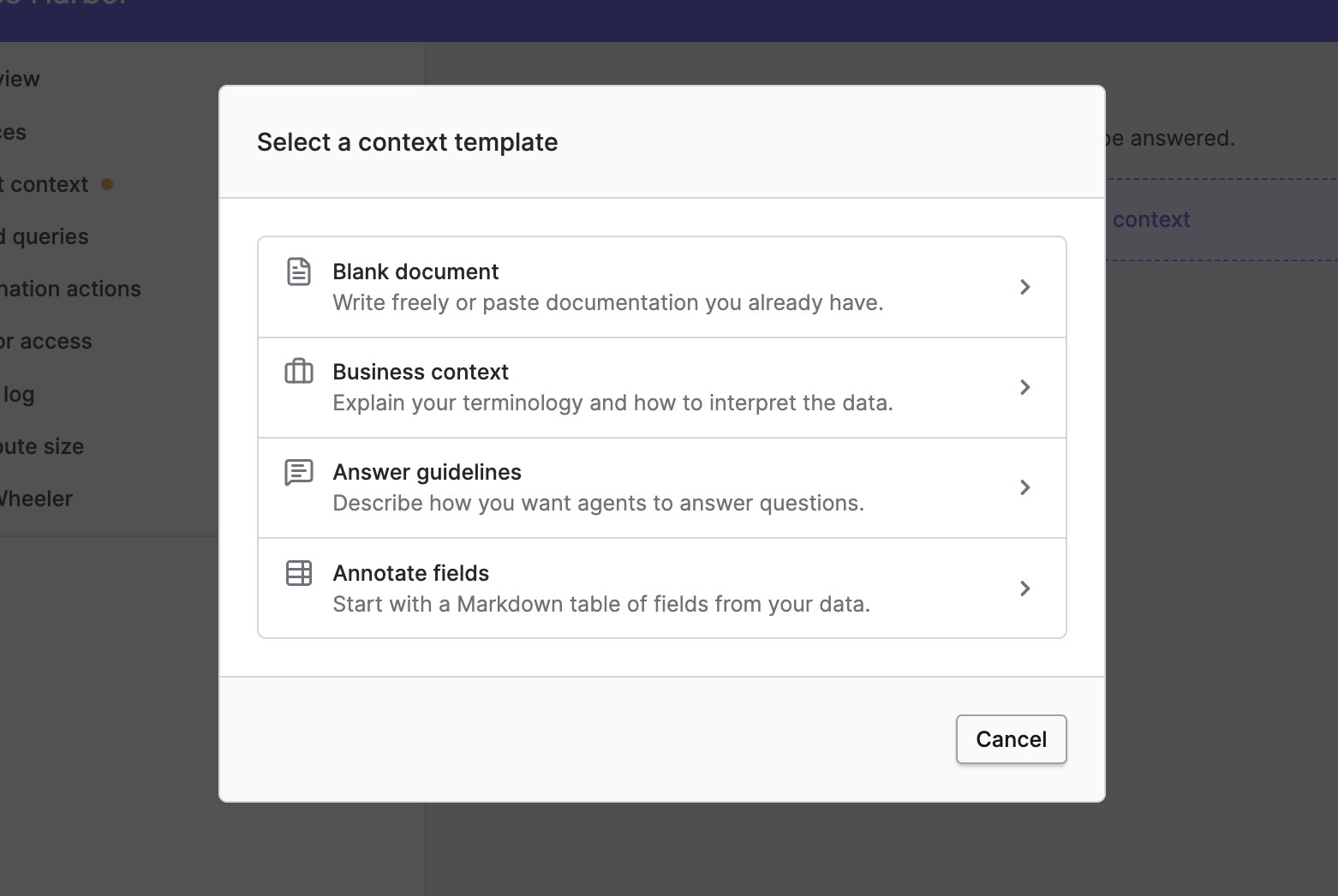
You can add as many context documents as you want. All connecting agents to a Harbor will be automatically aware of its context documents, so there is no need to have your users inform each of their agents of this context.
- Your last step is to authorize particular users (with email addresses) or agents (with API keys) to access this Harbor.
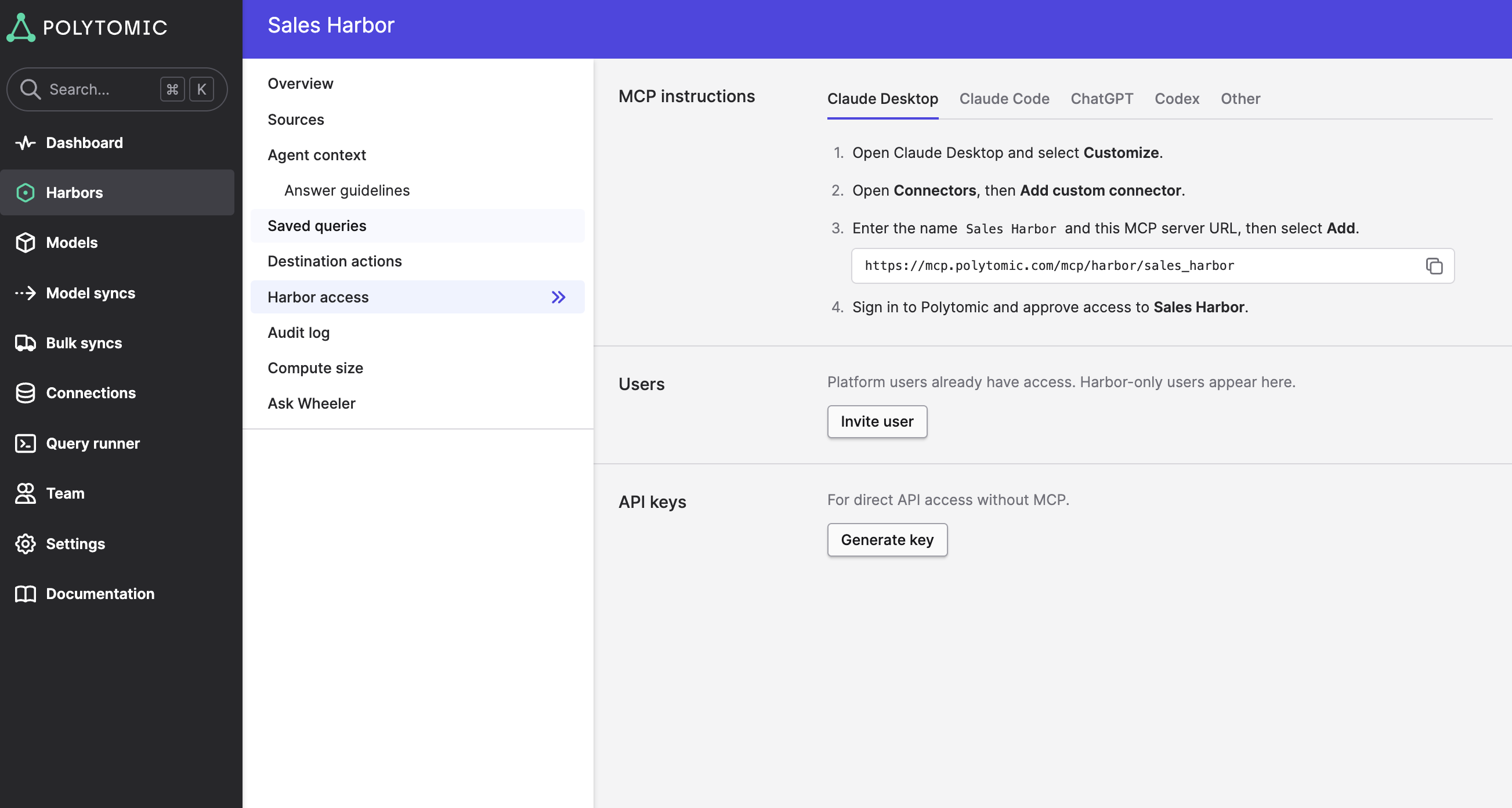
As you can see from this screnshot, each Polytomic Harbor comes with a unique MCP server and you can share its URL with any users who want to query its data using their agents (Claude, ChatGPT, etc) or write from it to other systems.
- Once connected to a Harbor with its MCP server, test the connection by asking your agent a question about its data. For example, if you have meeting data in a Harbor named Sales Harbor, you can ask your agent the following:
Use the Polytomic Sales Harbor to tell me what was discussed in my most recent meeting
Updated about 4 hours ago