

Microsoft Outlook 365
Source
Polytomic connects to Microsoft Outlook 365 using one of two methods:
- OAuth: this can only obtain emails from the authenticated user's connected mailbox and any shared mailbox their user account can see.
- Client credentials: these credentials have access to every mailbox the parent Microsoft app registration can see.
Connecting with OAuth
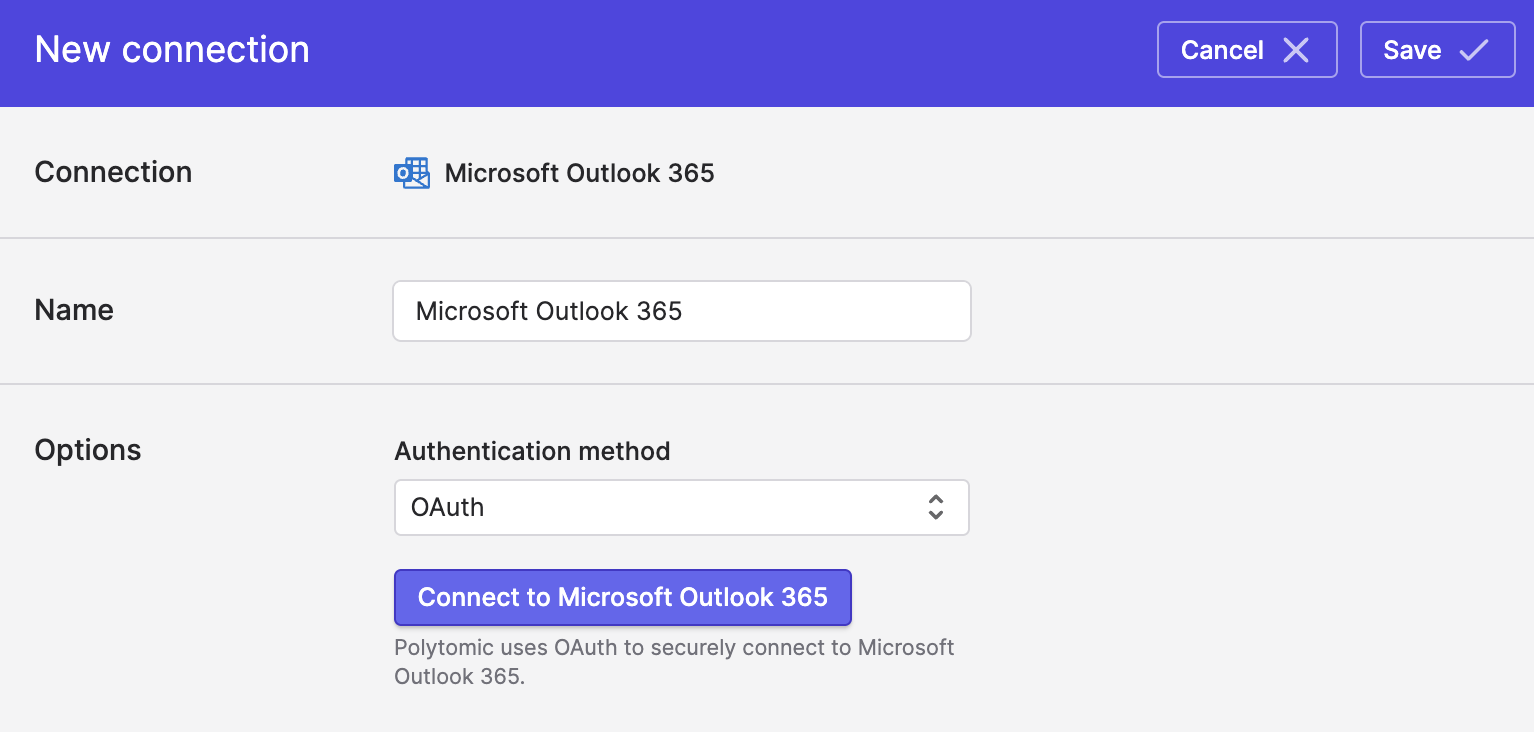
- In Polytomic, go to Connections → Add Connection → Microsoft Outlook 365:
-
Select OAuth as your authentication method.
-
Click Connect to Microsoft Outlook 365 to connect to Microsoft Outlook 365 using OAuth.
-
Click Save.
Connecting with client credentials
Client credentials are recommended if you would like Polytomic to sync from multiple mailboxes in one go:
- In the Microsoft Entra admin center, go to Entra ID → App registrations → New registration. You can set this to be single tenant and no redirect URL is required.
- Go to API permissions → Add a permission → Microsoft Graph → Application permissions and add the
Mail.ReadandUser.ReadBasic.Allpermissions. Click Grant admin consent for and enable admin consent for both these permissions. The connection won't work without this. - Go to Certificates & secrets → Client secrets → New client secret. Create a secret and copy its value (it's only shown once).
- In Polytomic, go to Connections → Add Connection → Microsoft Outlook 365.
- Select Client credentials as your authentication method.
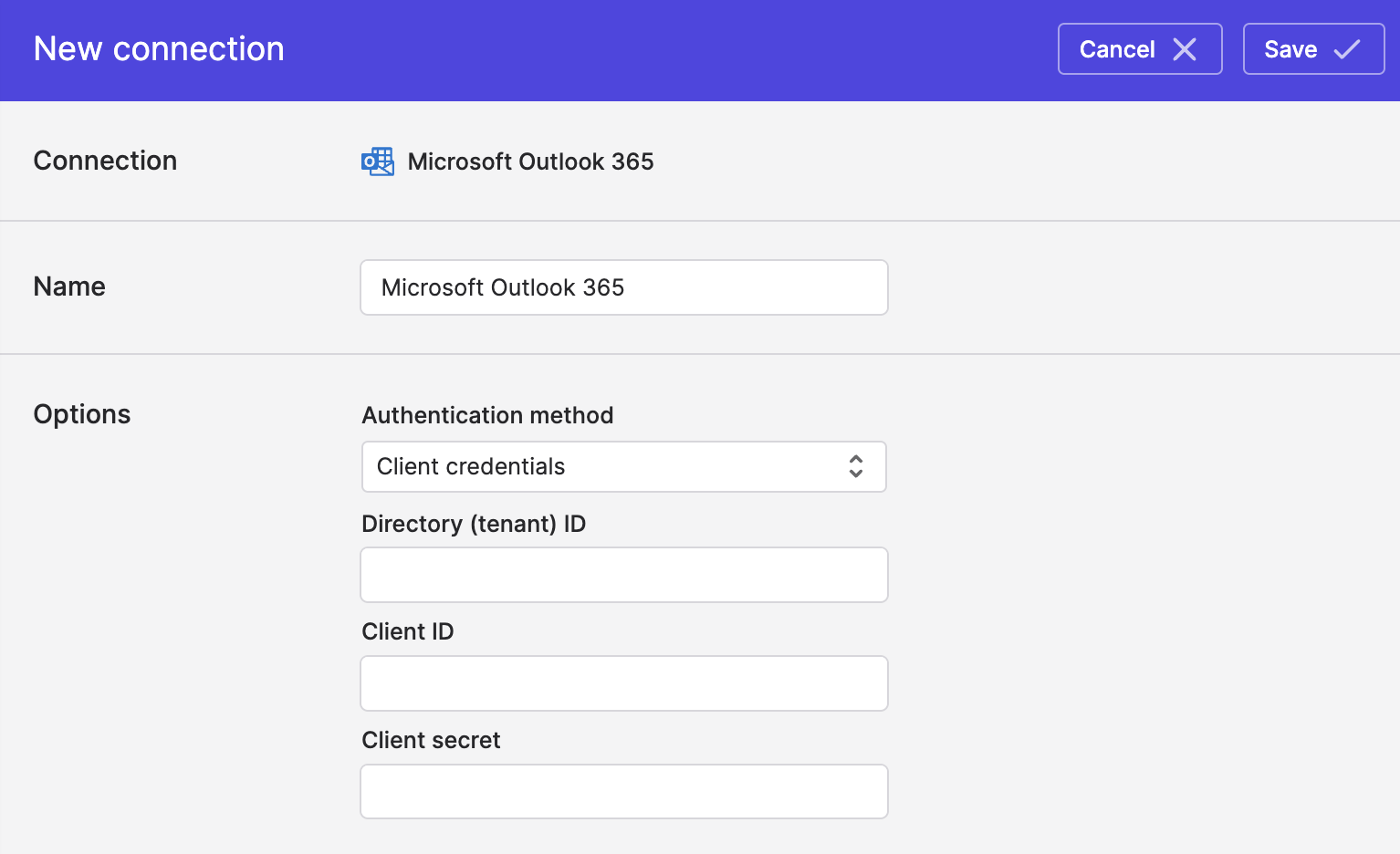
- Paste the Directory ID, client ID, and client secret from Step 3.
- Click Save.
Syncing from Microsoft Outlook 365
Use Bulk Syncs to sync and ETL emails from Microsoft Outlook 365 to your Polytomic Harbors, databases, data warehouses, and cloud storage buckets.
Updated about 2 hours ago