

Paycor
Source
Polytomic connects to Paycor using the following credentials:
- Client ID
- Client Secret
- APIm Subscription Key
- Scope Name
Before connecting Polytomic to Paycor, you will need to create an OAuth standard application in Paycor to generate these credentials:
- Create a Paycor Developer Portal Account by following the instructions here: https://developers.paycor.com/guides#developer-portal-account-creation.
- Log in to the Developer Portal and click Applications. Then create a standard application by following the instructions here: https://developers.paycor.com/guides#create-application. Note the OAuth Client ID and OAuth Client Secret generated at the end.
- Go to the Security Connections tab and note the APIm Subscription Key: https://developers.paycor.com/guides#security-connections-tab.
- While still in the Security Connections tab, add the following URL to the Approved Return OAuth URL list:
https://app.polytomic.com/connect/paycor. - In the Data Access tab, turn on all permissions that contain the word View: https://developers.paycor.com/guides#data-access-tab. Click Save.
- Go to the General tab and note the Scope Name value.
Now that you have credentials from Paycor, you will enter them in Polytomic:
- In Polytomic, go to Connections → Add Connection → Paycor.
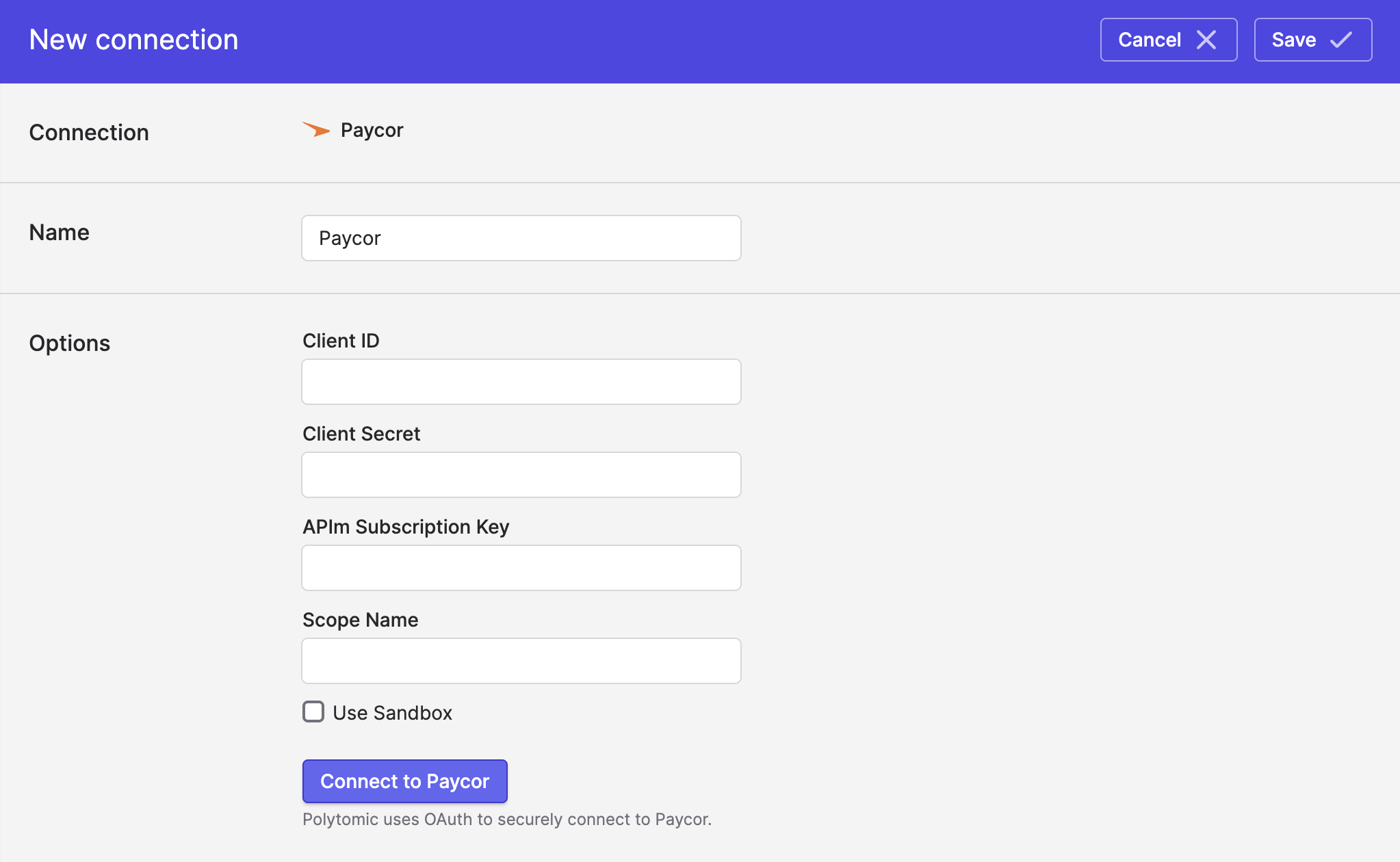
-
Enter all credentials generated from your Paycor application.
-
Click Save.
Syncing from Paycor
Use Bulk Syncs to sync data from Paycor to your data warehouses, databases, and cloud storage buckets like S3.
Updated 4 months ago