

Apple Ads
Source
Polytomic connects to Apple Ads (formerly known as Apple Search Ads) using a combination of credentials. The instructions are as follows:
- Log in to Apple Ads as an account administrator.
- In the Users menu in the top-right corner, select the account which you want to connect Polytomic to.
- Go to Account Settings → User Management → Invite Users.
- Enter the invited user’s first name, last name, and Apple ID.
- In the User Access and Role section, select the API Account Manager role.
- Click Send Invite.
- The user will receive a secure link and code to log in to Apple Ads. Ensure that they successfully log in to Apple Ads using this.
- In Polytomic, go to Connections → Add Connection → Apple Ads.
- Copy the public key from Polytomic:
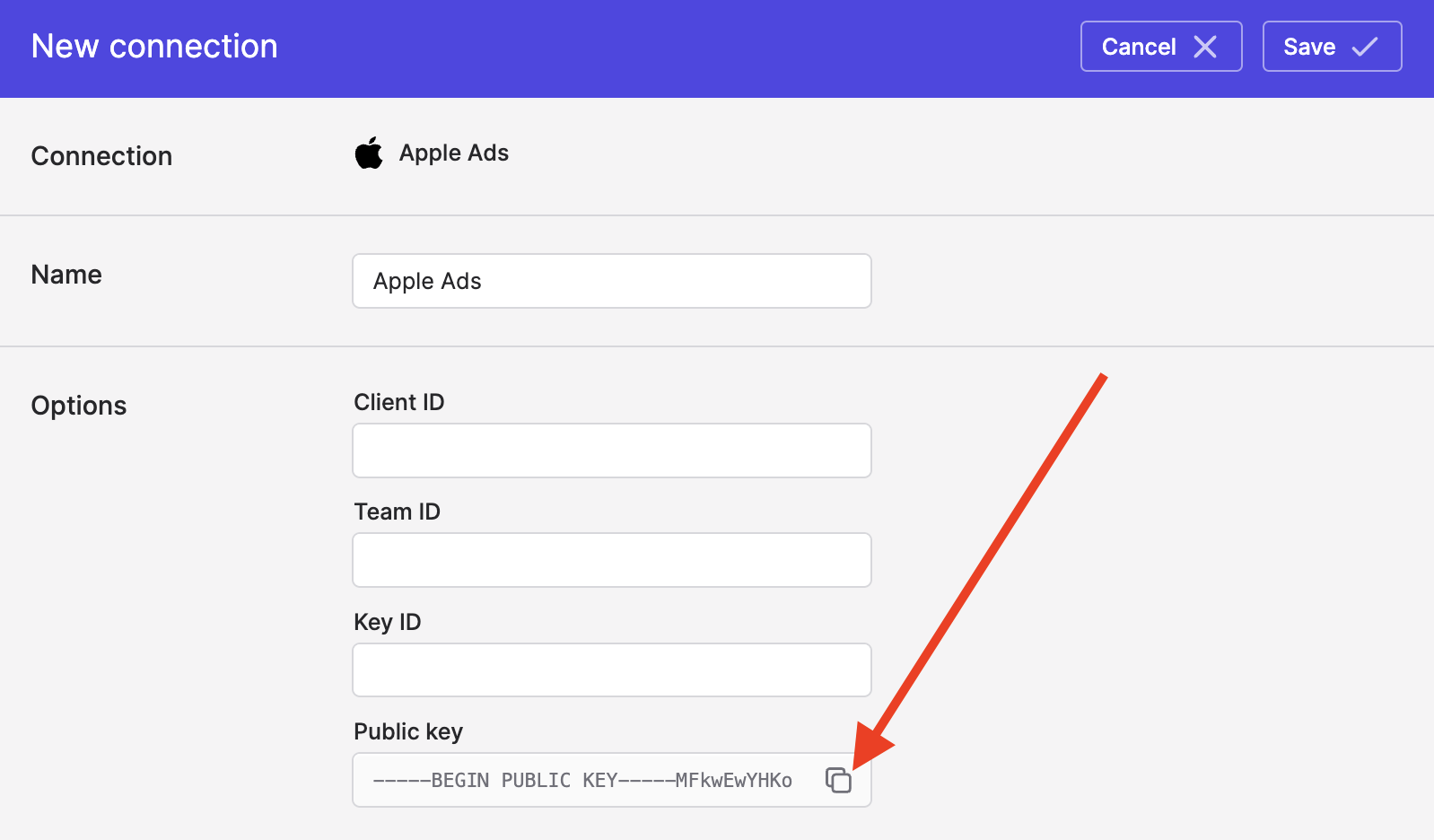
- In your Apple Ads console, go to Account Settings → API for the user you invited in Step 6.
- Paste the public key from Step 9 into the Public Key field in your Apple Ads console.
- Click Save. This will show this list of credentials above the Public Key field in your Apple Ads console:
- Client ID
- Team ID
- Key ID
- Copy the credentials from Step 12 into your Polytomic Apple Ads connection.
- Click Save in Polytomic.
Syncing from Apple Ads
Use Bulk Syncs to sync from Apple Ads to data warehouses, database, and cloud storage buckets like S3.
Use Model Syncs to sync from Apple Ads to SaaS applications, spreadsheets, and webhooks.
Updated 3 months ago