

Connecting with client credentials
In addition to the default OAuth flow ("Connect to Zendesk Support") and API token authentication, Polytomic can connect to Zendesk Support using client credentials — an OAuth client ID and secret that you create in your own Zendesk account.
Use client credentials when you want the connection to authenticate as a dedicated Zendesk OAuth client that you own and control, rather than through Polytomic's shared OAuth app. No browser redirect or interactive authorization is required: Polytomic mints and refreshes an access token directly from the client ID and secret you provide.
Step 1: Create an OAuth client in Zendesk
-
In Zendesk, go to Admin Center → Apps and integrations → APIs → OAuth clients, then click Add OAuth client.
-
Fill in the client details:
- Name, Description, and Company — shown to users when granting access. You can use values like
PolytomicandPolytomic connection. - Identifier — the unique identifier for your client, used as the Client ID when you configure the connection in Polytomic (for example,
polytomic). - Client kind — select Confidential. Client credentials require a confidential client so the secret can be stored securely.
- Redirect URLs — not required for client credentials; you can leave this blank.
- Name, Description, and Company — shown to users when granting access. You can use values like
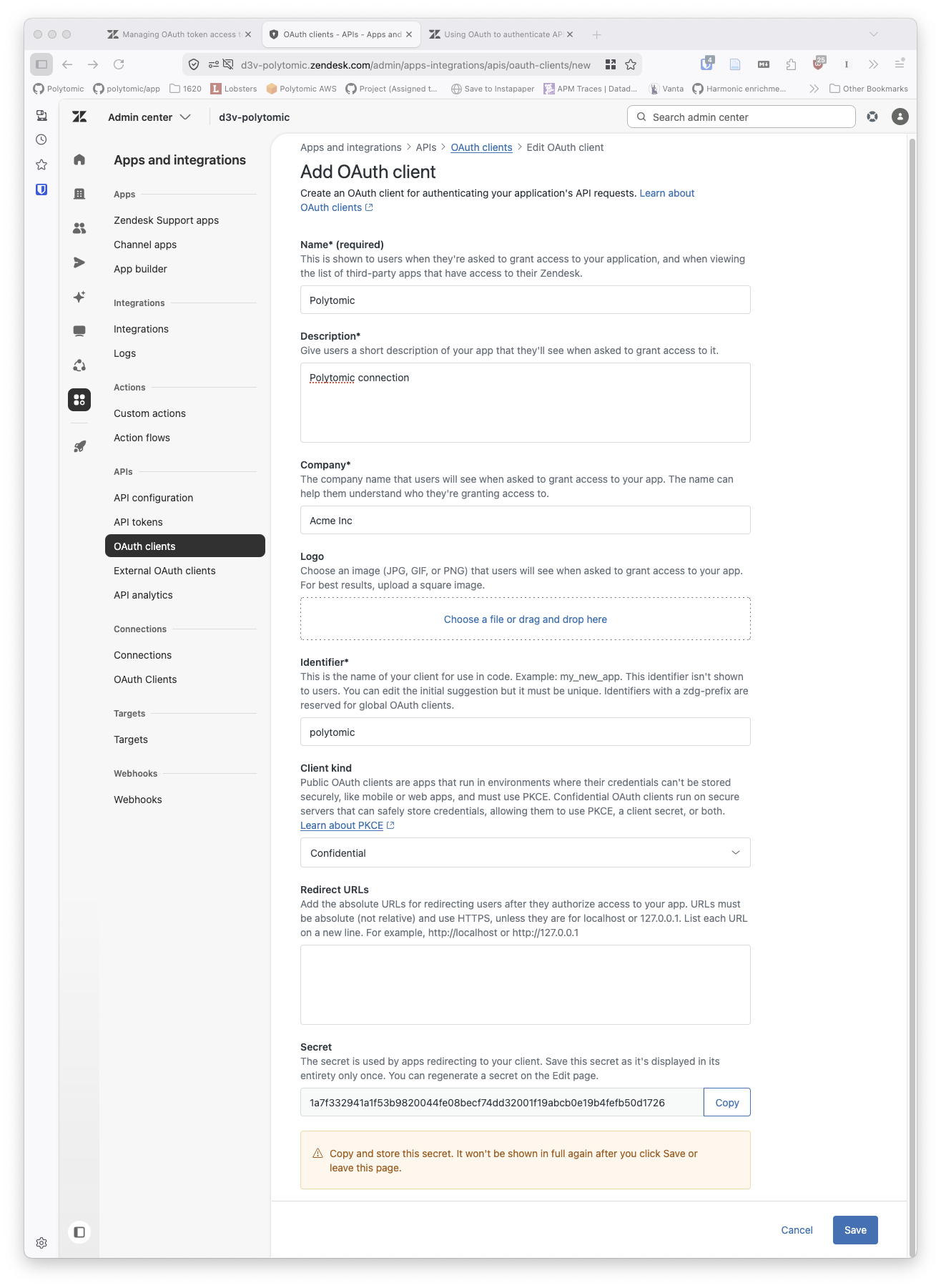
- Click Save. Zendesk generates a Secret and displays it once.
Copy the secret immediatelyZendesk shows the client secret in full only once. Copy and store it before you leave the page. If you lose it, you can regenerate a new secret from the OAuth client's Edit page.
Step 2: Configure the connection in Polytomic
-
In Polytomic, go to Connections → Add Connection → Zendesk Support.
-
Set Authentication method to Client credentials.
-
Enter the following:
- Zendesk Subdomain — your subdomain from the account URL
https://yoursubdomain.zendesk.com(for example,yoursubdomain.zendesk.com). - Client ID — the Identifier value from the Zendesk OAuth client you created in Step 1.
- Client secret — the Secret generated for that OAuth client.
- Zendesk Subdomain — your subdomain from the account URL
-
Click Save.
Updated 4 months ago