

Google Cloud MySQL
Source and destination
Whitelist IPsIf your database network-access policy requires whitelisting our IPs first, you can find them here: https://docs.polytomic.com/docs/whitelist-ips.
Polytomic connects to a Google Cloud SQL for MySQL instance using a Google Cloud service account key.
Add the connection
-
Create a service account key. See Create a service account key.
-
Create a user on your MySQL database. You will supply this account's credentials to Polytomic. See Create a MySQL user for Polytomic below.
-
In Polytomic, go to Connections → Add Connection → Google Cloud MySQL.
-
Enter your connection details:
- Cloud SQL connection name — your instance's connection name in the form
project:region:instance. See Find your connection name. - Database — the name of the database to connect to.
- Username and Password — the MySQL user you created in step 2. You can leave Password empty when authenticating with IAM.
- Service account key — the JSON key file from step 1.
- Cloud SQL connection name — your instance's connection name in the form
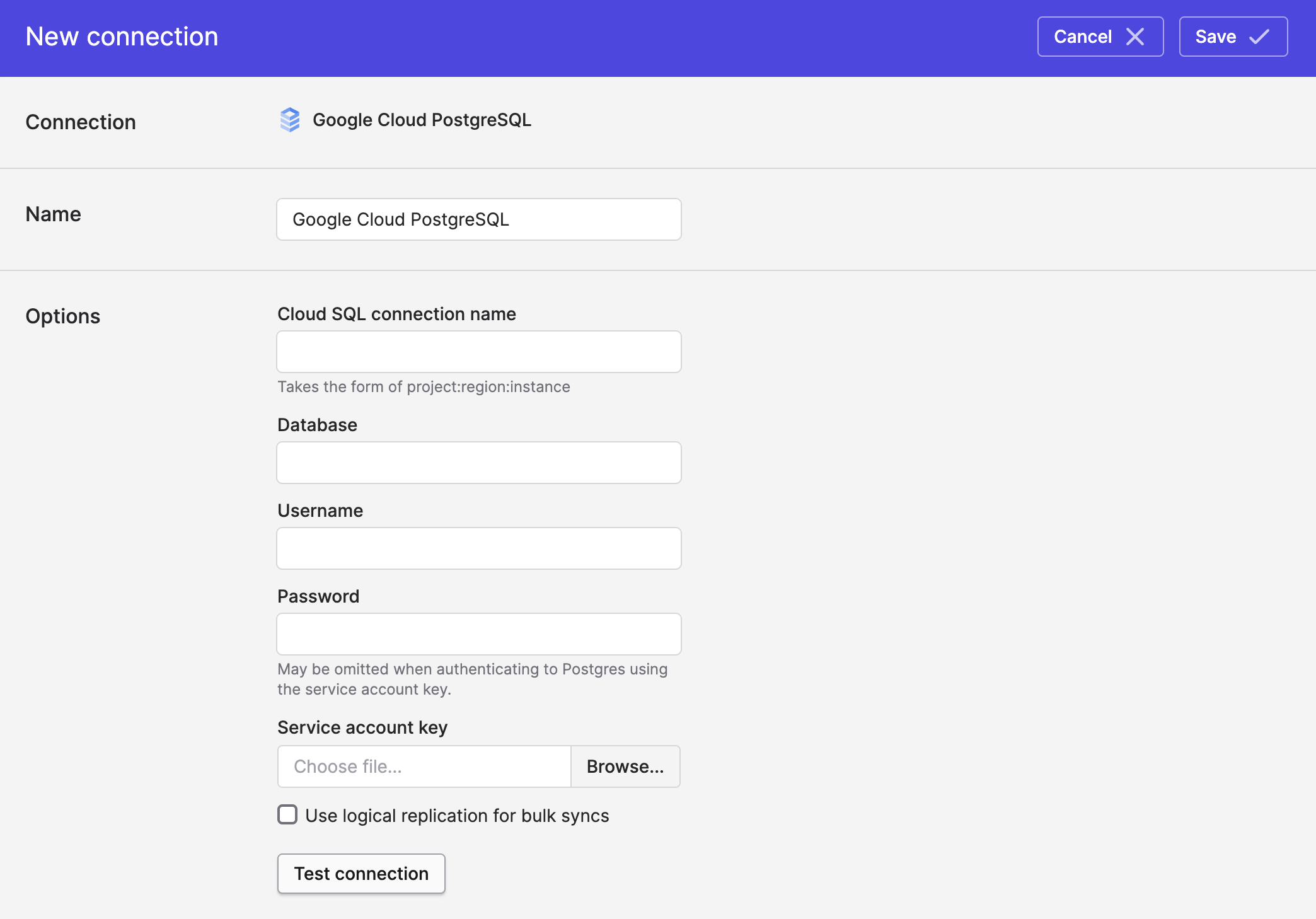
- Click Save.
Create a MySQL user for Polytomic
Create a user on your MySQL database and grant it read access to the database you want to sync. You'll supply these credentials to Polytomic.
CREATE USER 'polytomic_user' IDENTIFIED BY 'my_password';
GRANT SELECT ON my_database.* TO 'polytomic_user'@'%';
If you want Polytomic to write to MySQL as well, grant the additional permissions listed in Required MySQL user permissions.
Using IAM authenticationIf you authenticate with IAM instead of a password, create the user from the Cloud SQL console's Users tab (or with
gcloud) as a Cloud IAM user, then grant it the same permissions shown above. See https://cloud.google.com/sql/docs/mysql/add-manage-iam-users.
CDC replication
For fast incremental Bulk Syncs from Google Cloud MySQL, Polytomic can read your instance's binary log instead of scanning your tables. See CDC replication for Google Cloud MySQL.
Updated 3 months ago