

Zoom
Source
Polytomic connects to Zoom using a Zoom account ID, client ID, and client secret. Follow these steps to generate these:
-
Using a Zoom admin account with developer permissions, go to the Zoom App Marketplace and sign in.
-
In the bottom left of your screen, click Developer:
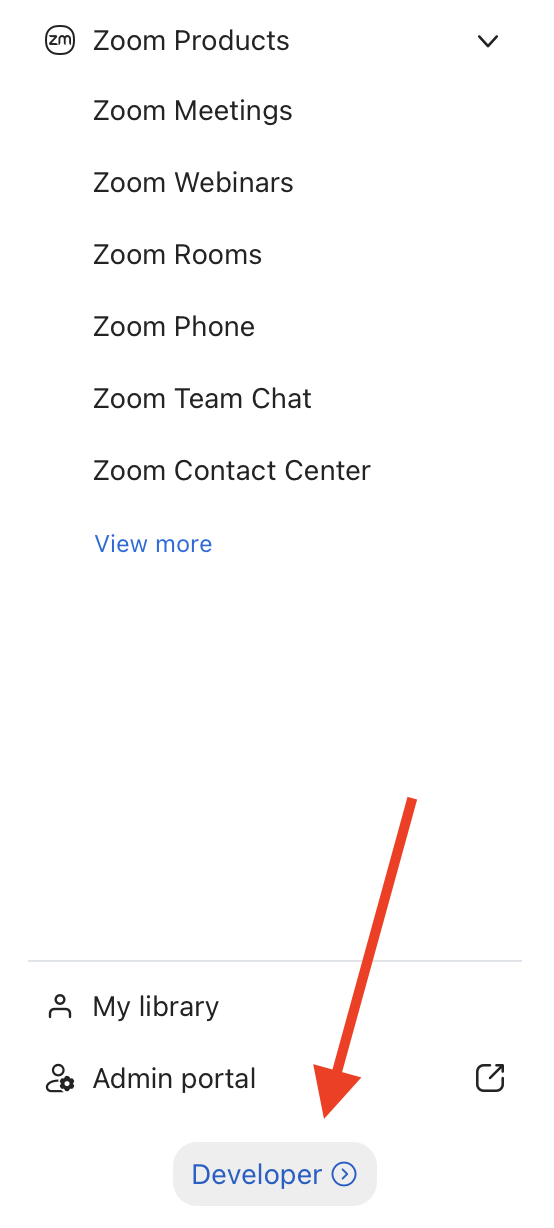
-
On the Created apps page, click Develop → Build app:
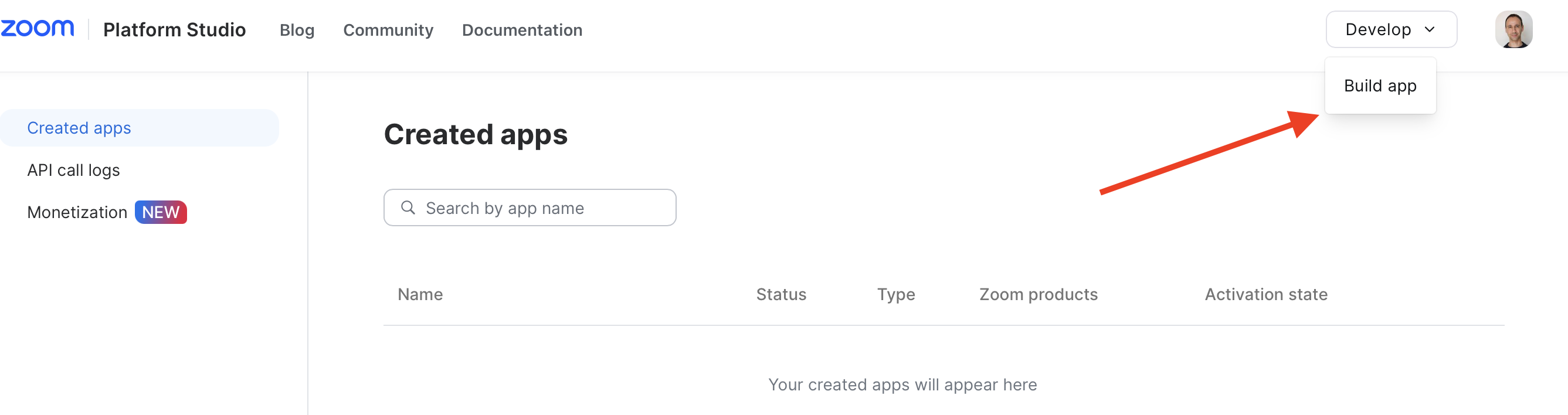
-
Select Server to Server OAuth App → Create.
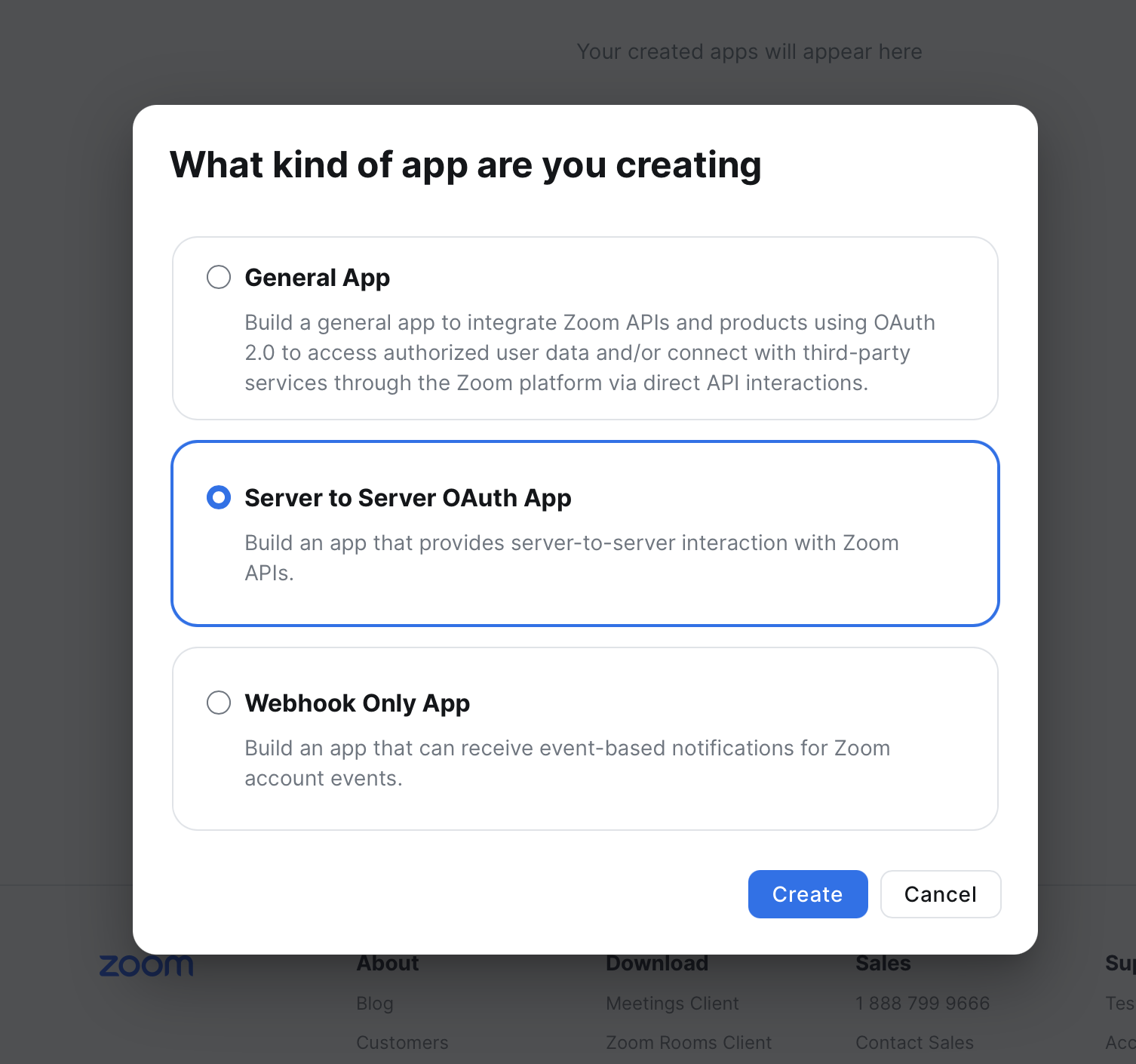
-
You will be prompted for the app name. Name your app Polytomic then click Create.
-
You will be shown an Account ID, Client ID, and Client Secret. Note all three values as you will enter them in Polytomic.
-
In the Scopes section, click Add Scopes → enter
meetings:read→ Select All (All)→ Done. You only need to enable the scopes for the objects you wish to sync.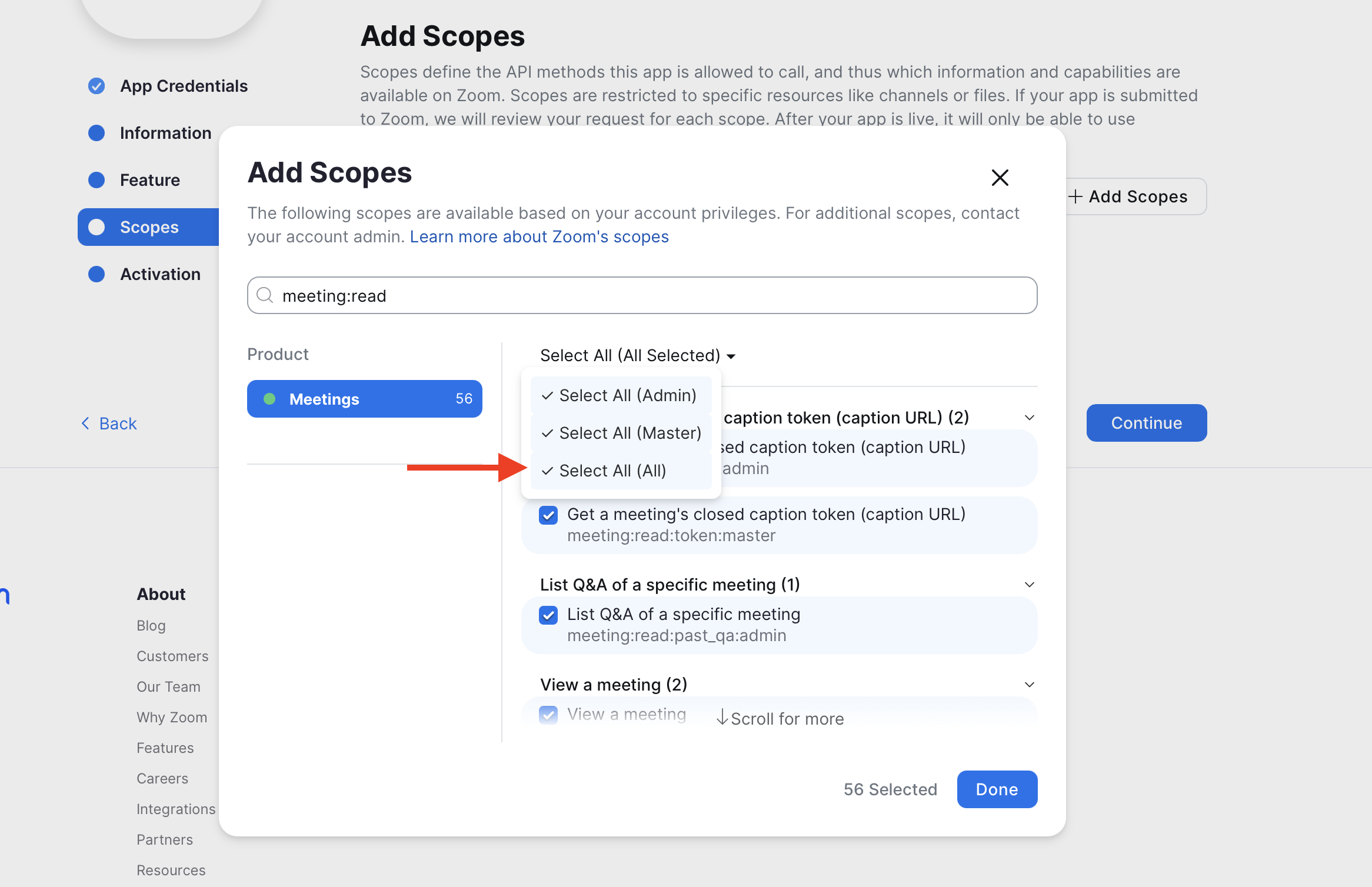
-
Repeat the same process for this list:
contact_group:readgroup:readmeeting_summary:readrecording:readreport:readuser:readcloud_recording:read
-
At the bottom right of the Scopes page, click Continue.
-
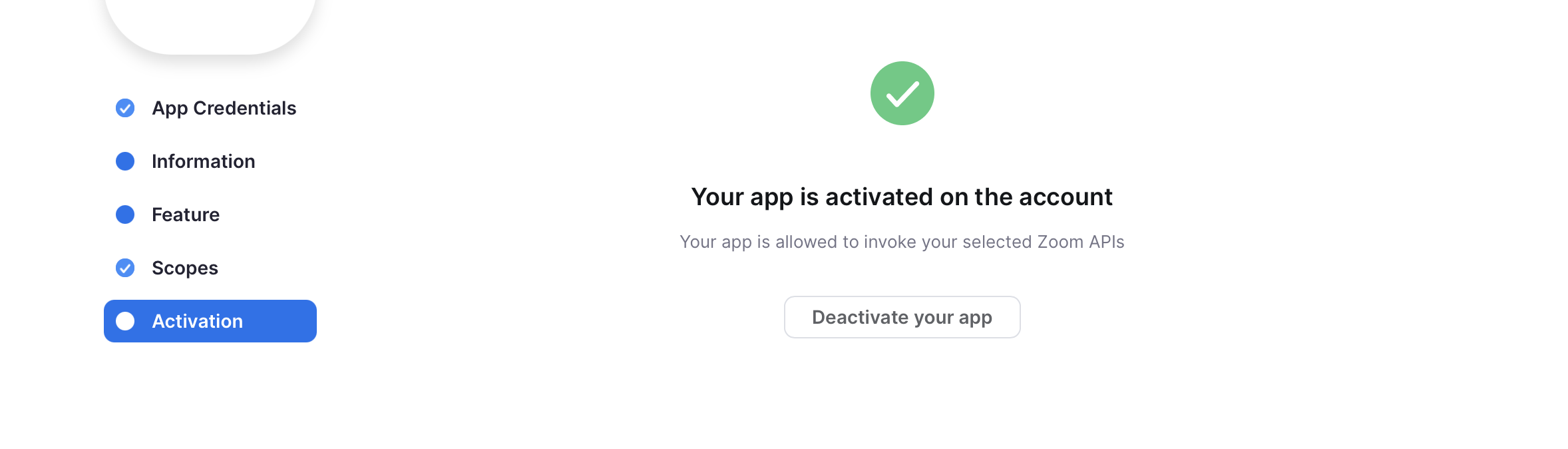
Go the the Activation page and activate your app. If successful, you should see this:
-
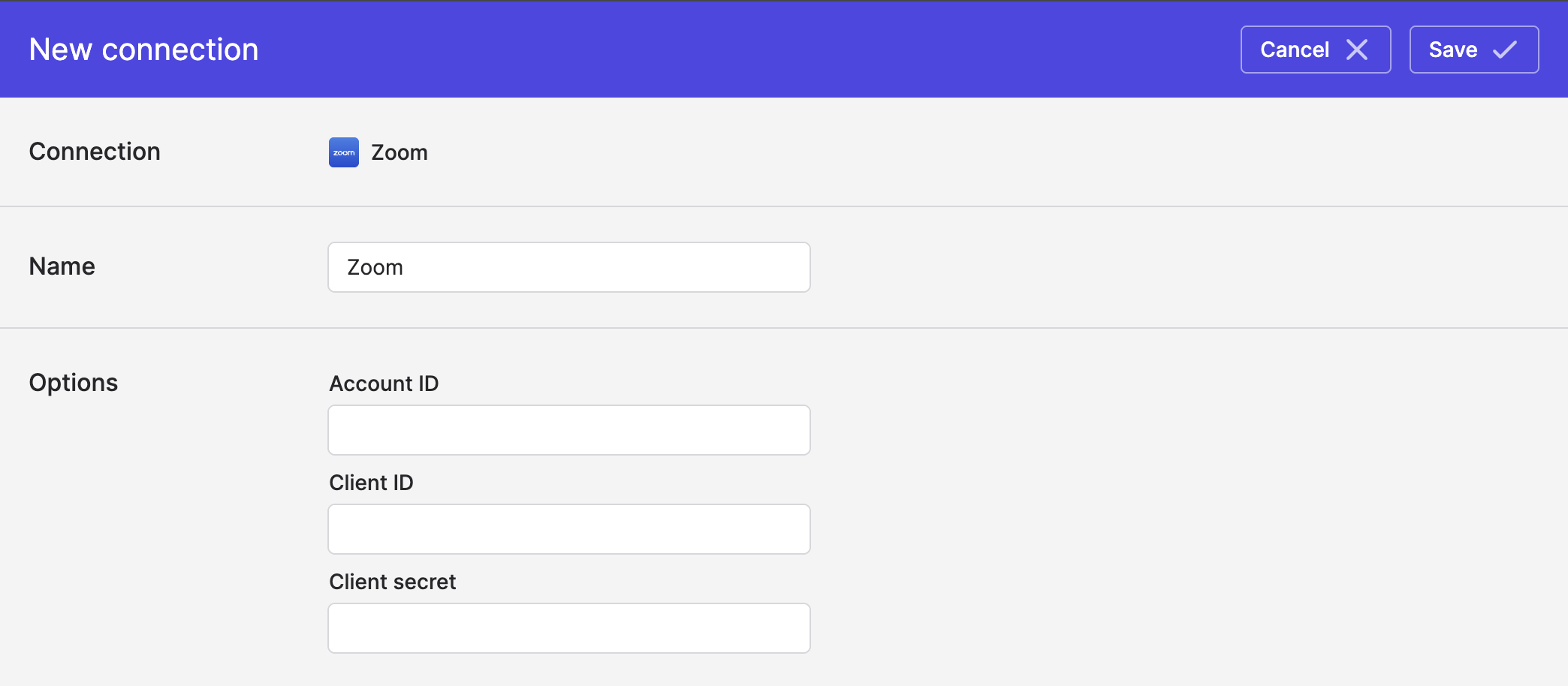
In Polytomic, go to Connections → Add connection → Zoom.
-
Enter the credentials from Step 6 in Polytomic:
- Click Save.
Syncing from Zoom
Use Bulk Syncs to sync meeting, transcript, users, and other information from Zoom to your databases, data warehouses, and cloud storage buckets like S3.
Updated 2 months ago