

ClickHouse
Source and destination
Polytomic connects to ClickHouse using your ClickHouse hostname and database credentials:
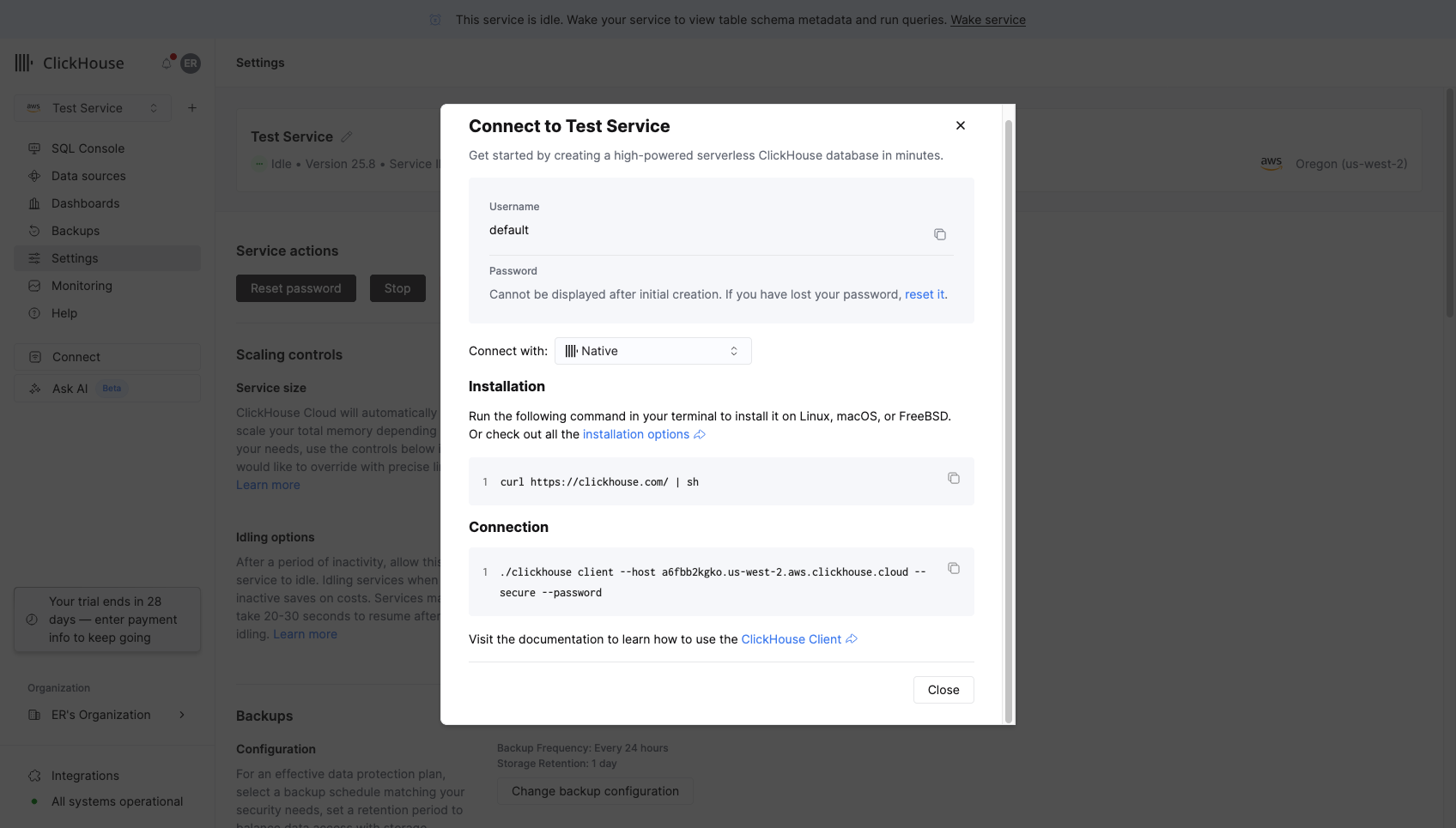
- In your ClickHouse console, show your connection information for the Native protocol. The popup will look like this:
- In Polytomic, go to Connections → Add Connection → ClickHouse.
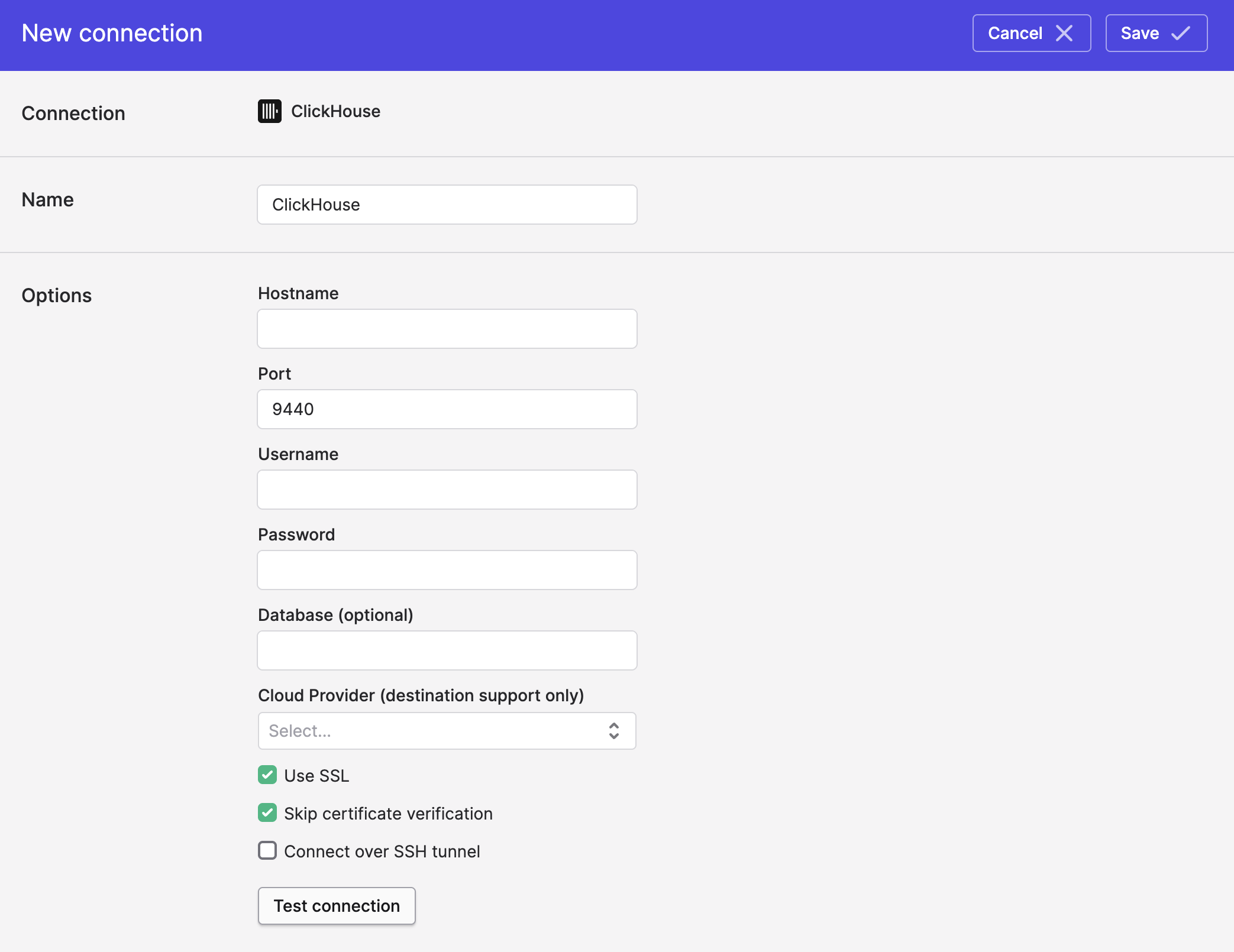
- Paste your ClickHouse connection details in your Polytomic connection fields:
- Click Save.
Polytomic commonly connects to Clickhouse through either port 9440 (if connecting with SSL) or port 9000.
Writing to ClickHouse
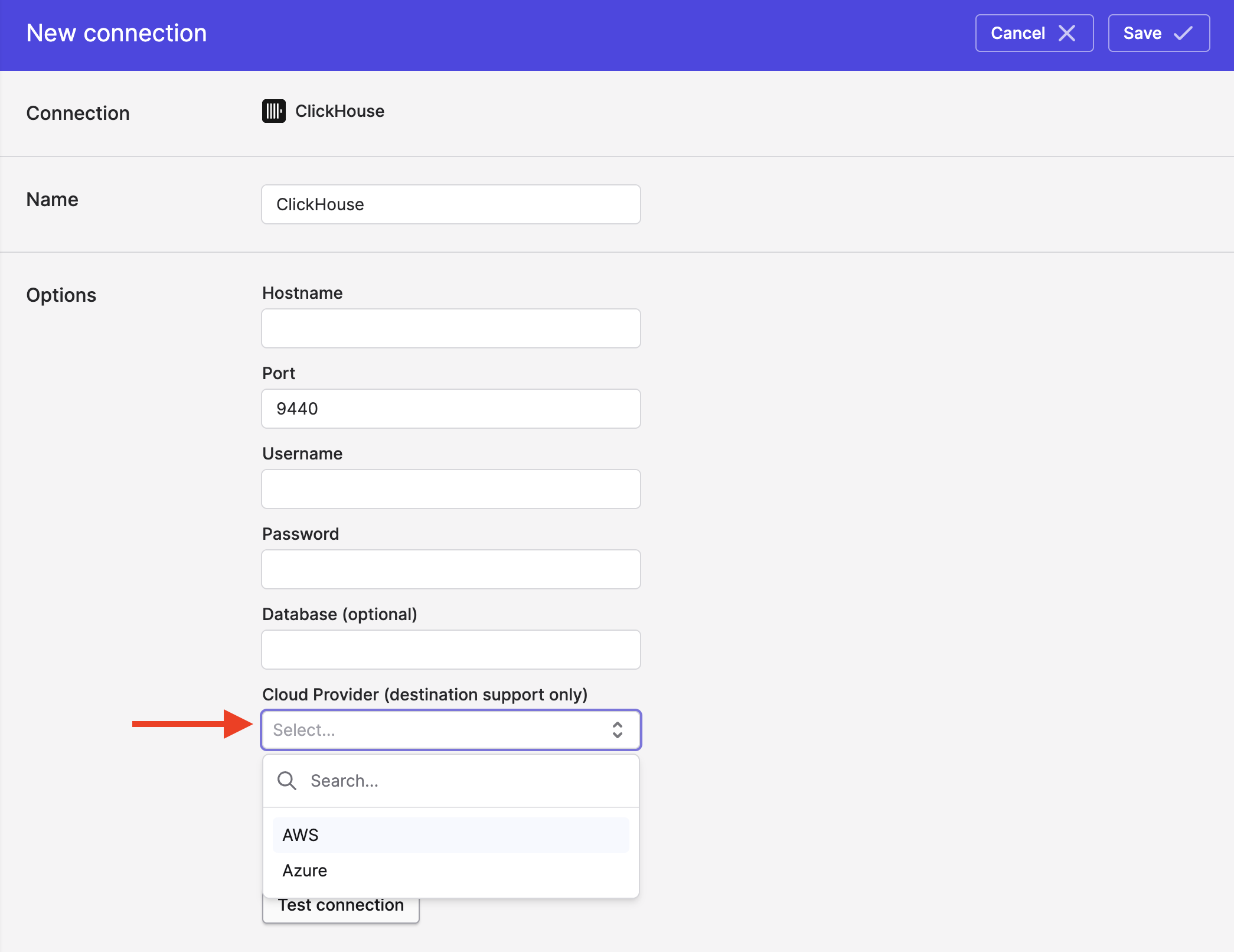
If you will be writing to ClickHouse, you'll need to select your cloud provider and provide access credentials to a cloud storage bucket (Polytomic will use this as a staging area):
Writing to ClickHouse on AWS
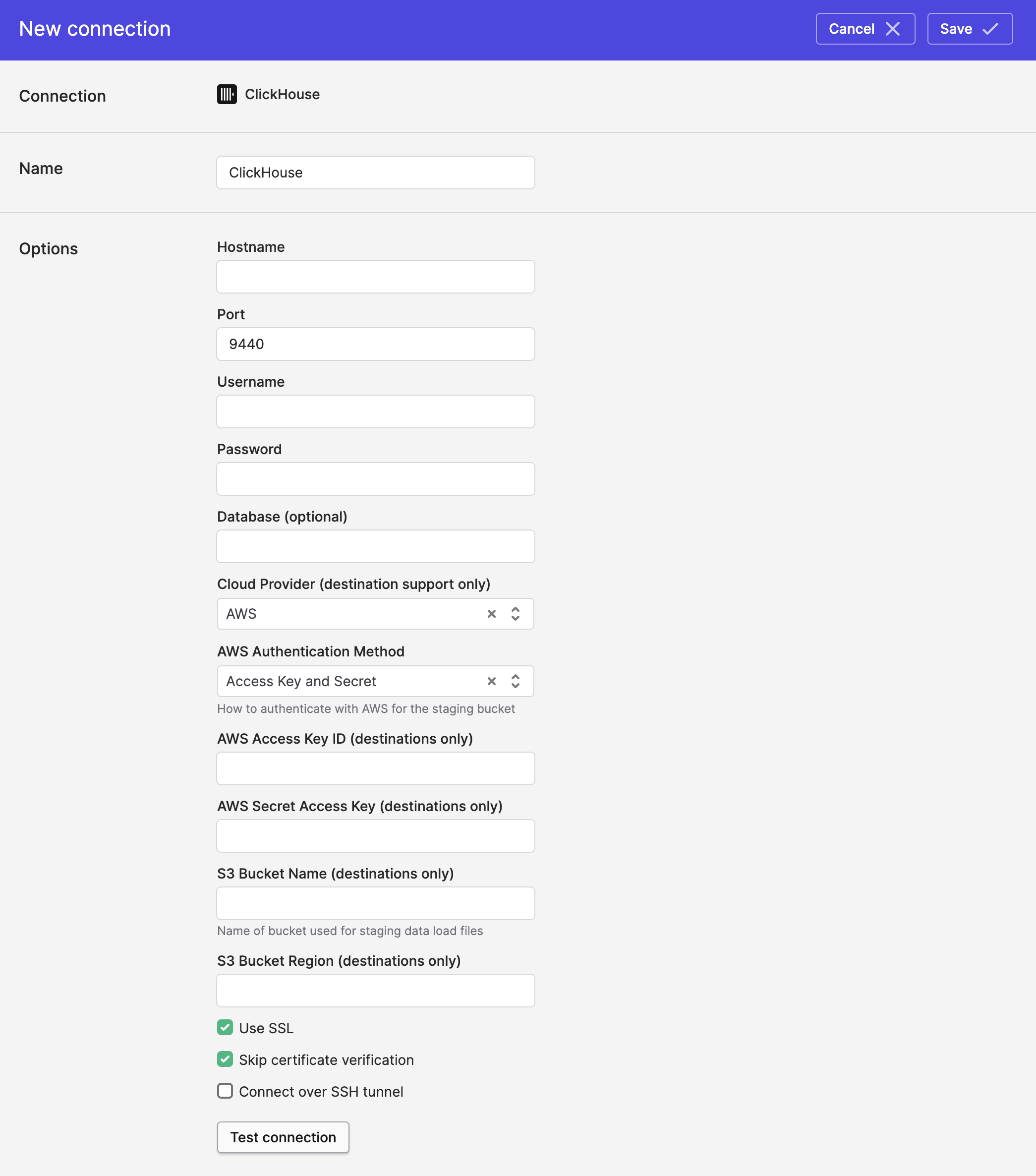
To enable Polytomic to write to your ClickHouse instance, you'll need to provide the following information:
- S3 bucket name (Polytomic uses an S3 bucket to stage data for syncs into ClickHouse).
- S3 bucket region (e.g. us-east-1 or such).
- Either:
- An AWS Access Key ID and Secret, or
- An AWS IAM Role ARN which Polytomic will assume when staging data into the bucket (see instructions here .
Writing to ClickHouse on Azure
To enable Polytomic to write to your Azure ClickHouse instance, you'll need to provide an Azure Storage container for Polytomic to stage data in:
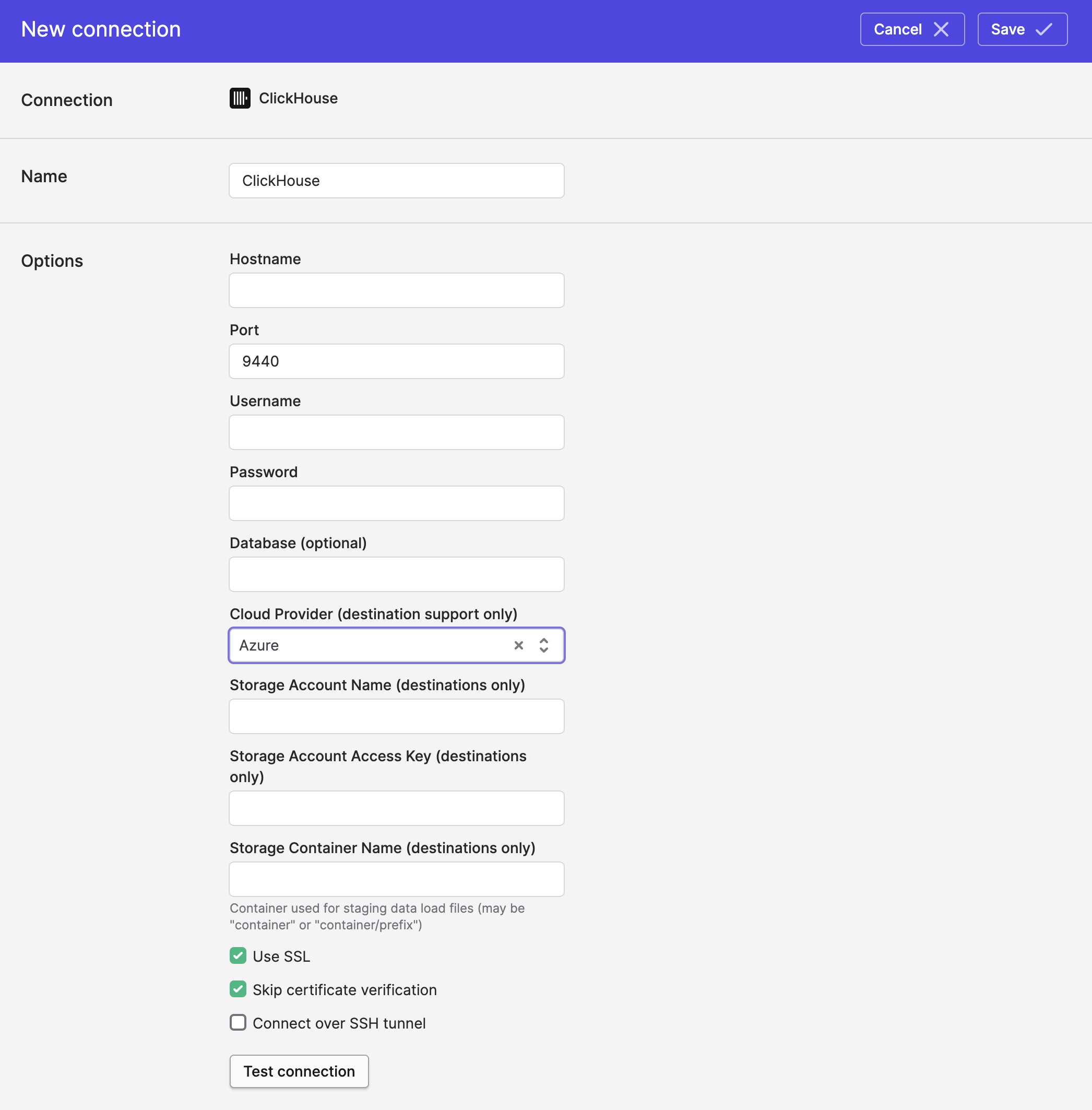
You will need to enter the following values in Polytomic:
- Azure Storage account name: the account name that contains the container Polytomic will write to.
- Azure Storage access key: the access key associated with the storage account.
- Azure Storage container name: the container that Polytomic will write to.
Writing to ClickHouse on Google Cloud
To enable Polytomic to write to your Google Cloud ClickHouse instance, you'll need to provide a Cloud Storage bucket for Polytomic to stage data in.
ClickHouse requires a Cloud Storage HMAC interoperability key, so you'll create an HMAC key for a service account rather than using service account key JSON.
-
Create (or choose) the bucket Polytomic will stage data in. It should be in the same region as your ClickHouse instance.
-
Go to https://console.cloud.google.com/iam-admin/serviceaccounts and create a service account for Polytomic.
-
Grant that service account the Storage Object Admin role on the staging bucket. Polytomic creates, reads, and deletes its own staging files, and lists the bucket to load them.
-
Go to Cloud Storage → Settings → Interoperability, and under Access keys for service accounts, select Create a key for a service account. Choose the service account from step 2.
-
Copy the Access key and Secret. The secret is shown only once — if you lose it, delete the key and create a new one.
-
In Polytomic, set Cloud Provider to Google Cloud and enter the following values:
- GCS Bucket Name: the bucket from step 1. To stage data under a folder rather than at the bucket root, enter it as
bucket/prefix. - HMAC Access ID: the access key from step 5. It begins with
GOOG1E. - HMAC Secret: the secret from step 5.
- Click Save.
When you save the connection, Polytomic writes, reads, and deletes a test file in the bucket to confirm the credentials and permissions are correct. This checks Polytomic's own access to the bucket; it does not check your ClickHouse user's privileges, which are covered below.
Setting up permissions
We recommend creating a dedicated ClickHouse user for Polytomic to ensure proper access control and audit trail visibility.
A user created with CREATE USER starts with no privileges, so you'll need to grant them explicitly. If you connect as an administrator such as ClickHouse Cloud's default user, it already holds every privilege below and no grants are needed.
Permissions for reading data
To use ClickHouse as a data source, grant read access to the databases you'll sync from:
GRANT SELECT ON mydatabase.* TO polytomic;Permissions for writing data
To use ClickHouse as a destination, Polytomic creates and maintains its own tables, and loads data through a staging table:
GRANT SELECT, INSERT, CREATE TABLE, DROP TABLE, TRUNCATE, ALTER ON mydatabase.* TO polytomic;Some options require additional privileges:
-- Only if Polytomic should create the destination database itself
GRANT CREATE DATABASE ON *.* TO polytomic;

-- Only if you enable "Optimize after sync"
GRANT OPTIMIZE ON mydatabase.* TO polytomic;

-- Only if you enable "Hard delete rows"
GRANT ALTER DELETE ON mydatabase.* TO polytomic;
Permissions for the staging bucket
Polytomic stages data as Parquet files in your cloud storage bucket, then has ClickHouse read them back with a table function. Reading external data is a separate class of privilege in ClickHouse — table and database grants do not cover it — so your user also needs the source privilege matching the cloud provider you selected:
-- AWS or Google Cloud Storage
GRANT READ ON S3 TO polytomic;

-- Azure staging
GRANT READ ON AZURE TO polytomic;
Google Cloud Storage uses the S3 privilegeClickHouse implements its
gcs()table function on top of its S3 table function, and there is no GCS-specific privilege. GrantingREAD ON S3is correct for a Google Cloud bucket, even though the name mentions S3.
The READ ON <source> syntax requires ClickHouse 25.7 or later with the access_control_improvements.enable_read_write_grants server setting enabled. On earlier versions, use the equivalent older syntax:
GRANT S3 ON *.* TO polytomic;
GRANT AZURE ON *.* TO polytomic;
If this privilege is missing, the connection will still save successfully and syncs will fail when loading data with an error like:
code: 497, message: polytomic: Not enough privileges. To execute this query,
it's necessary to have the grant READ ON S3
Verifying permissions
To review what your Polytomic user has been granted, including privileges inherited through roles:
SHOW GRANTS FOR polytomic;Updated 2 months ago