---
updatedAt: 2026-06-18T13:05:14.000Z
agentTools:
projectIndex: https://docs.polytomic.com/llms.txt
---
# Facebook Ads token authentication
To authenticate Polytomic to Facebook Ads using a token, you'll create an app and system user in the Facebook Business Settings console for Polytomic to use.
1. Go to [Facebook Business Settings](https://business.facebook.com/settings/apps/) and click on **Apps** under the Accounts heading.
2. Click **Add** followed by **Create a new app ID** to begin creating an application for Polytomic to use.
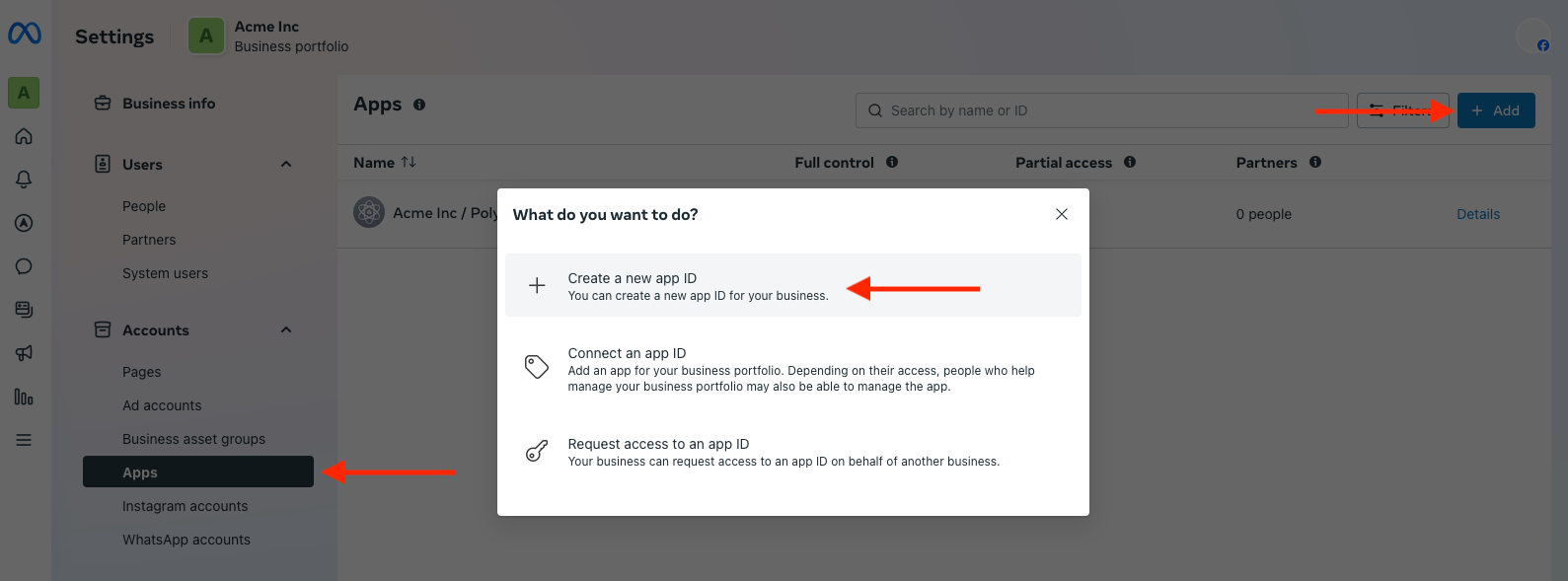
3. Fill out the app details appropriately.
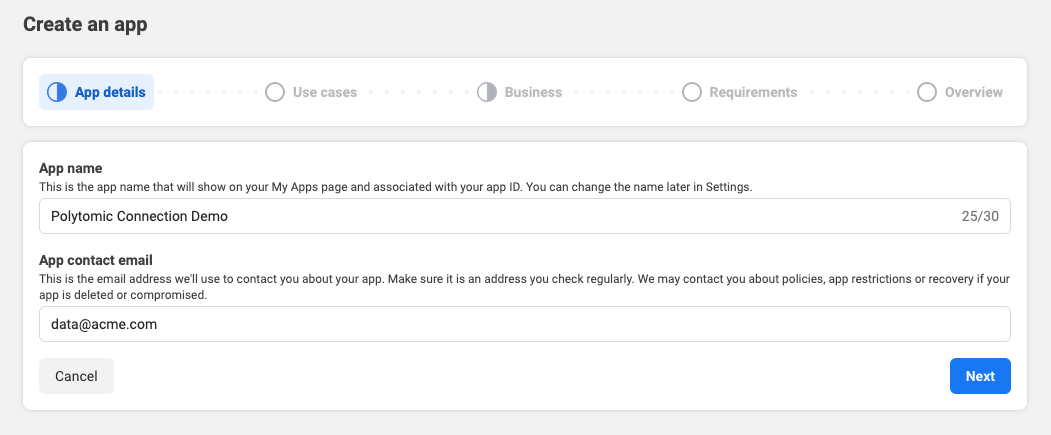
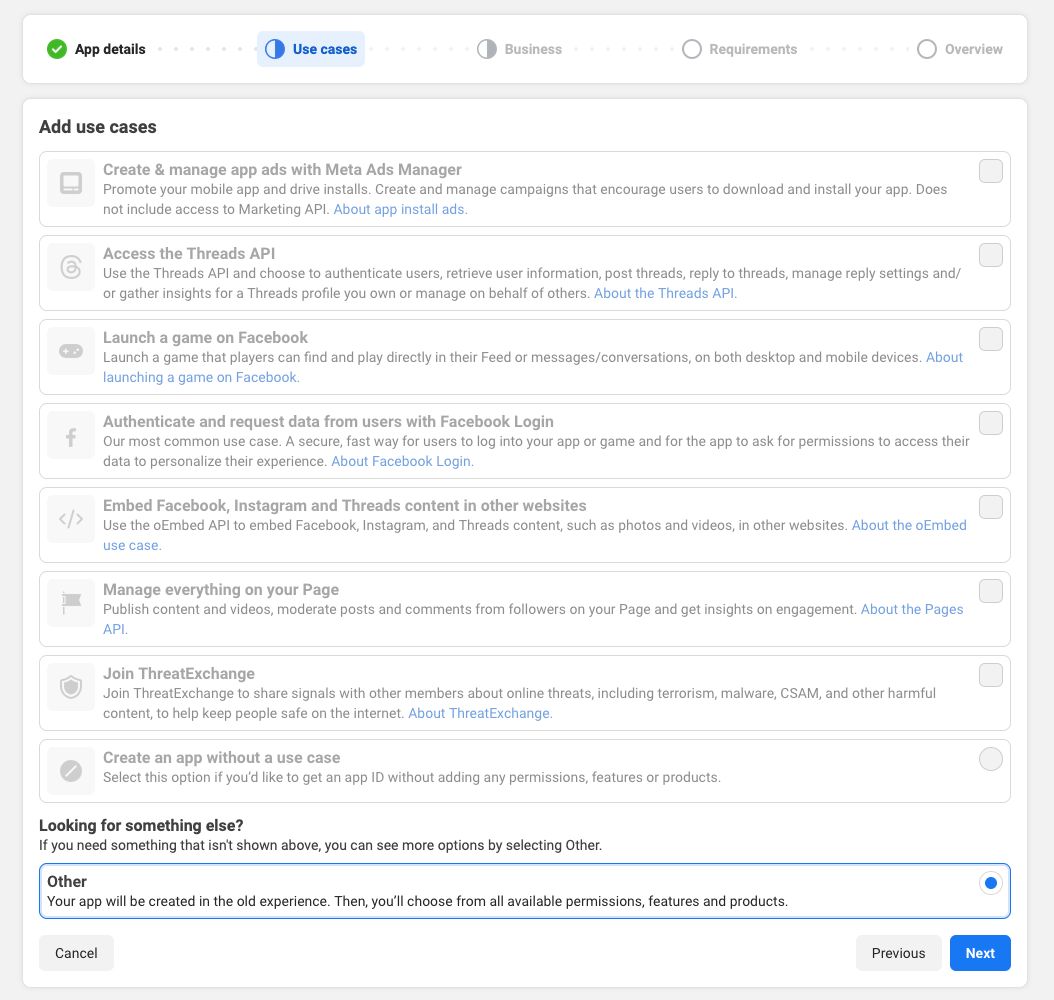
3. Click **Other** for the app use case then click **Next**.
4. Select **Business** for the app type then click **Next**.
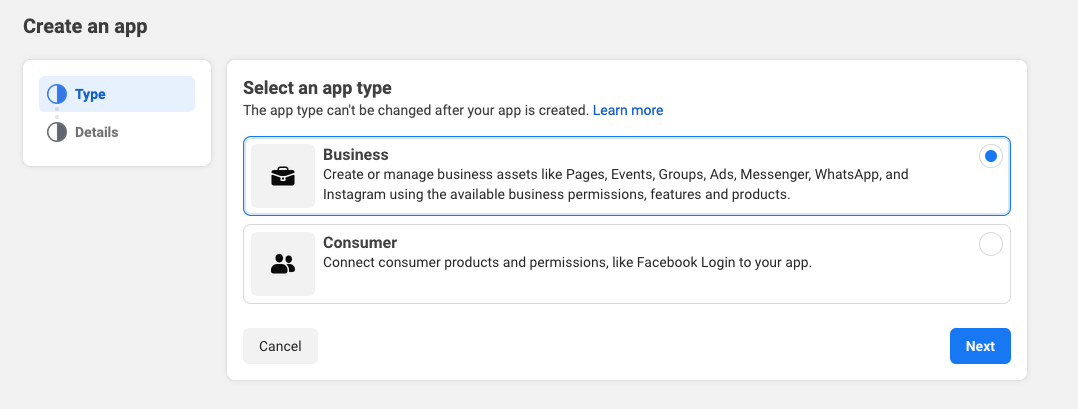
5. Give the app a name and click **Create App**.
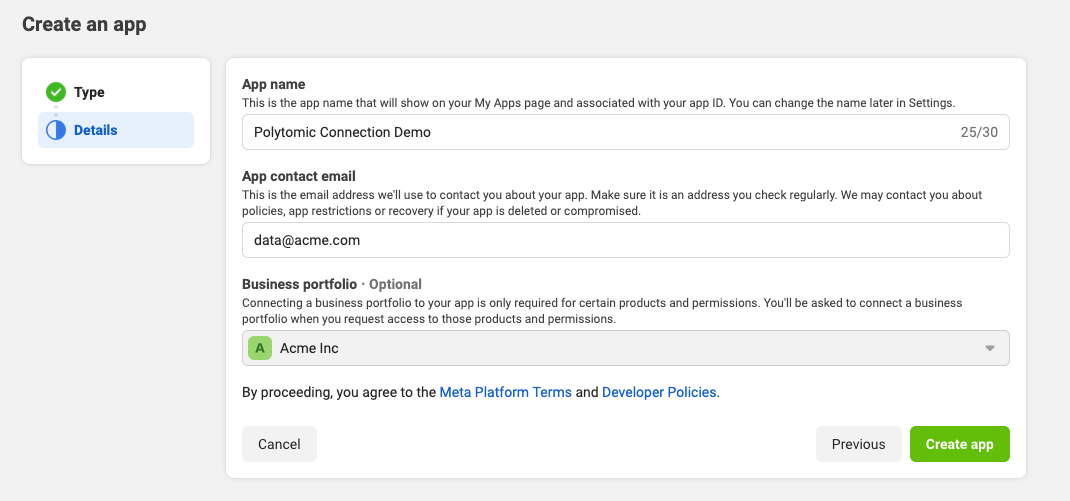
6. After creating your app you'll be presented with the App Dashboard. Copy the **App ID** at the top of the page.
[block:image]
{
"images": [
{
"image": [
"https://files.readme.io/47ff1d6-app_dashboard.png",
"",
""
],
"align": "center"
}
]
}
[/block]
7. Return to the Apps section of your [Facebook Business Settings](https://business.facebook.com/settings/apps/). If your app does not appear in the connect app list, click **Add** and select **Connect an app ID** to enter the app ID you copied in the previous step.
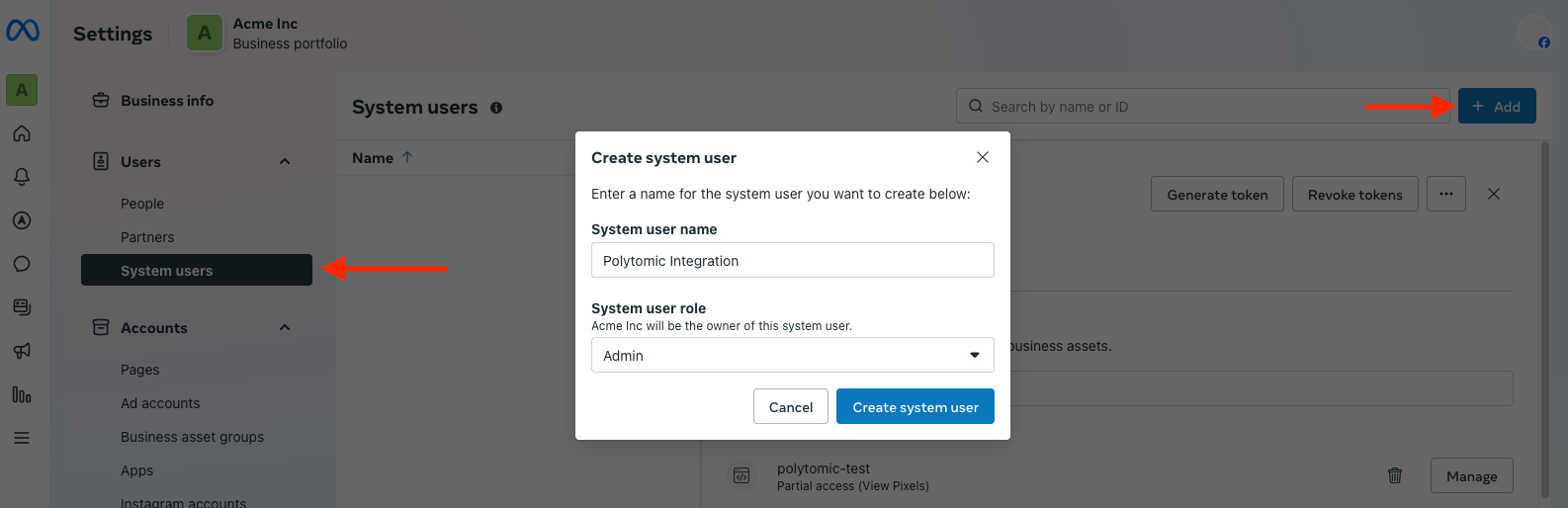
8. Go to **System users** under the **Users** section in the business manager.
9. Click **Add** to create a new system user for Polytomic to use. Provide a descriptive name, select **Admin** as the System user role, then click **Create system user**.
10. Click **Add Assets**.
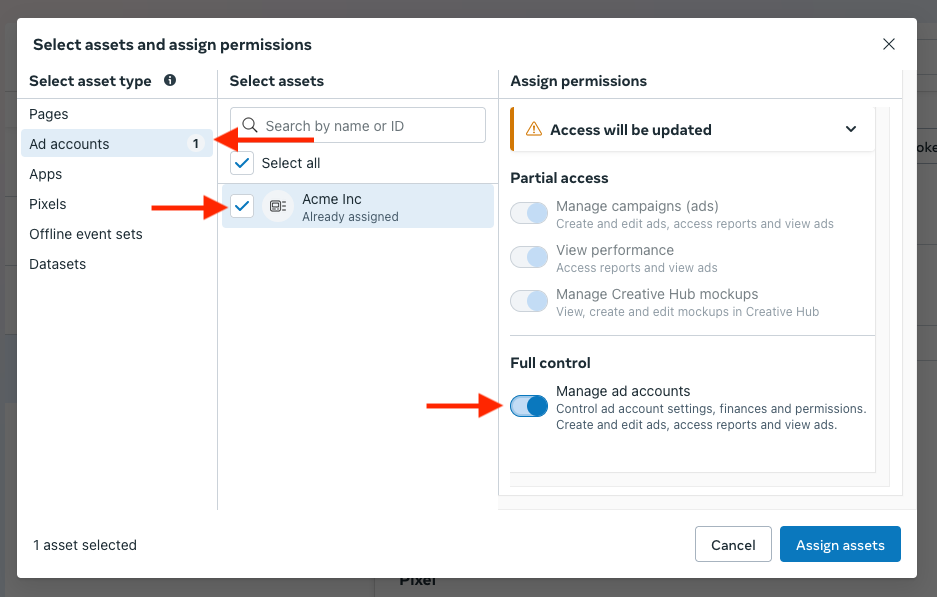
11. Under **Ad accounts**, grant the system user full control for the Facebook ad accounts you wish to integrate with Polytomic.
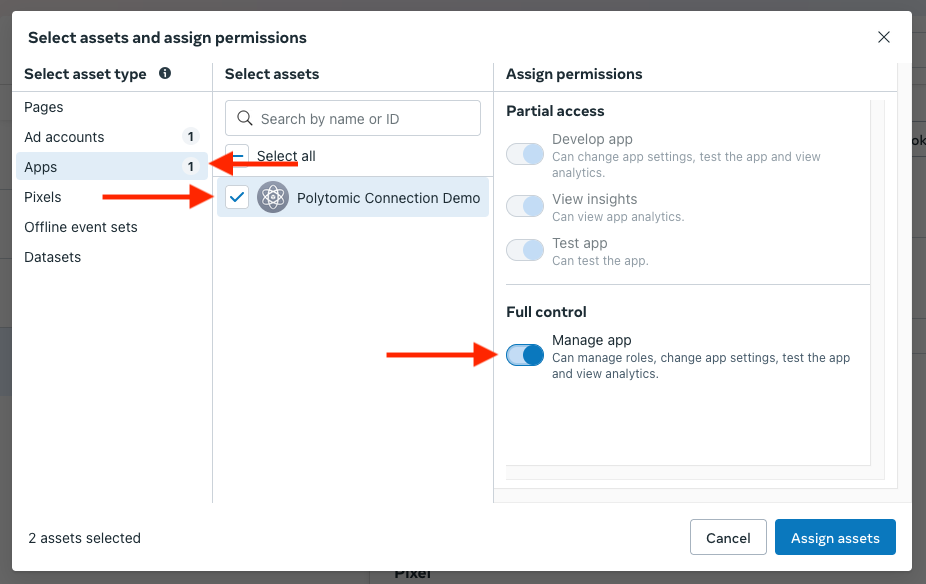
12. Under **Apps**, select the app you created and grant the system user full control. Click **Save changes**.
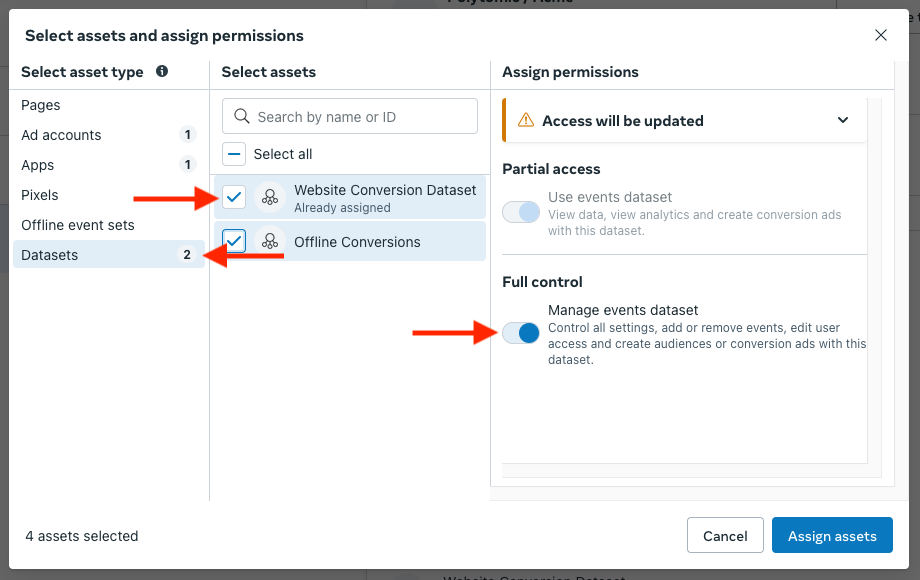
13. If you plan on sending conversions, make sure that you add the relevant datasets.
13. Click **Generate new token**.
14. Select the app you created and set the token expiration. We recommend selecting **Never** to avoid the need to generate a new token every 60 days.
Select the following permissions from the list:
* `ads_management`
* `ads_read`
* `business_management`
* `read_insights`
15. Click **Generate token** and copy the resulting token.
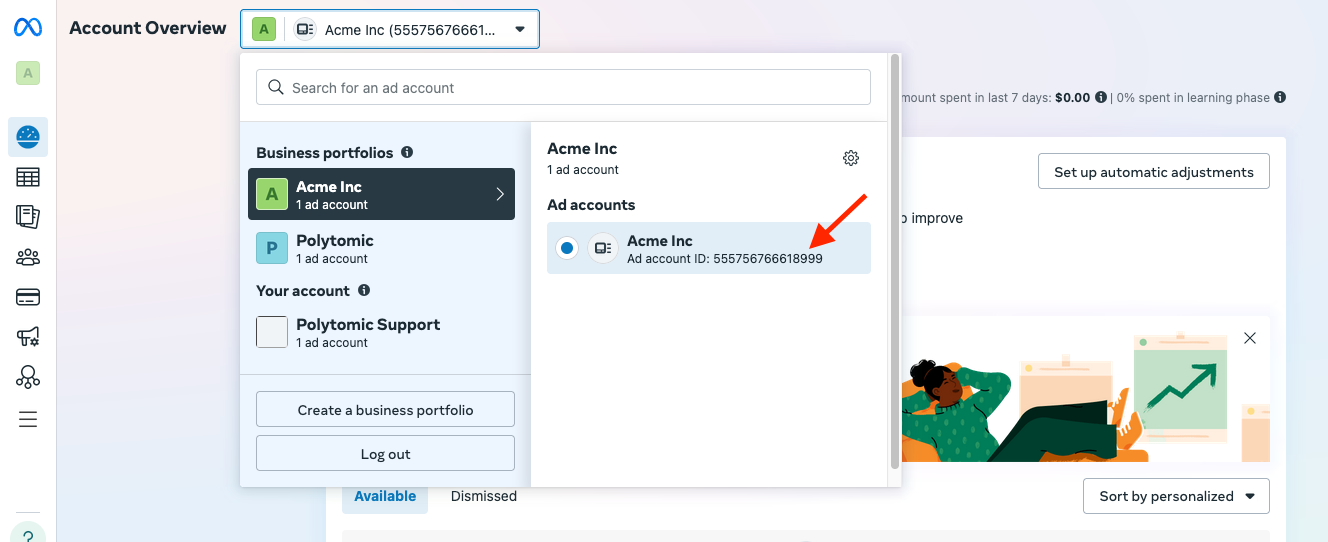
16. You will also need your Facebook **Ad Account** ID (not business ID). Open the ads manager, and you can find it near the top of the page:
15. In Polytomic, go to **Connections** -> **Add connection** -> **Facebook Ads**.
16. Select **Token** as your authentication method:
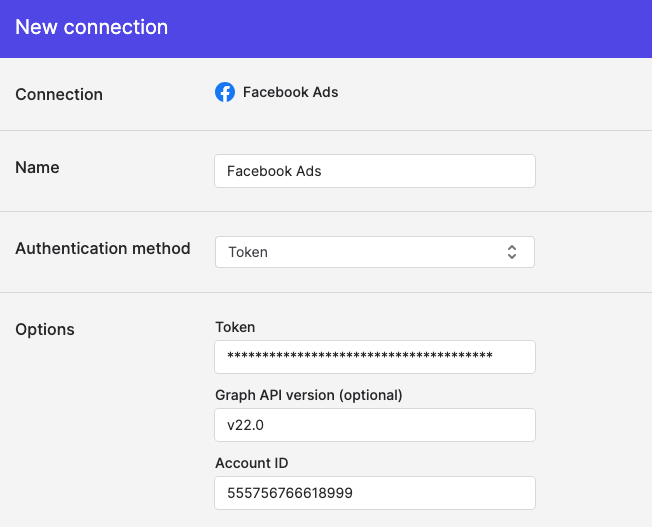
18. Paste the token from Step 15 into the **Token** field.
19. Click **Save**.